 BRASIL
Extração de texto
OCR para documentos e mesas
Qwen-OCR Extrai textos e analisa dados estruturados de imagens como documentos, tabelas e recibos digitalizados. Ele suporta várias línguas, extração de informações, análise de tabelas e reconhecimento de fórmulas.
Tente online:QwenCloud](https://home.qwencloud.com/try-ai)
Exemplos
<table style={{width: "100%", borderCollapse: "collapse", tableLayout: "fixed"}}> <tr> <th style={{textAlign: "left", width: "50%", paddingBottom: "8px", paddingRight: "12px"}}>** Imagem de entrada **</th> <th style={{textAlign: "left", width: "50%", paddingBottom: "8px", paddingLeft: "12px"}}>Reconhecendo resultado</th> </tr>
<tr>
<td style={{verticalAlign: "top", paddingRight: "12px"}}>
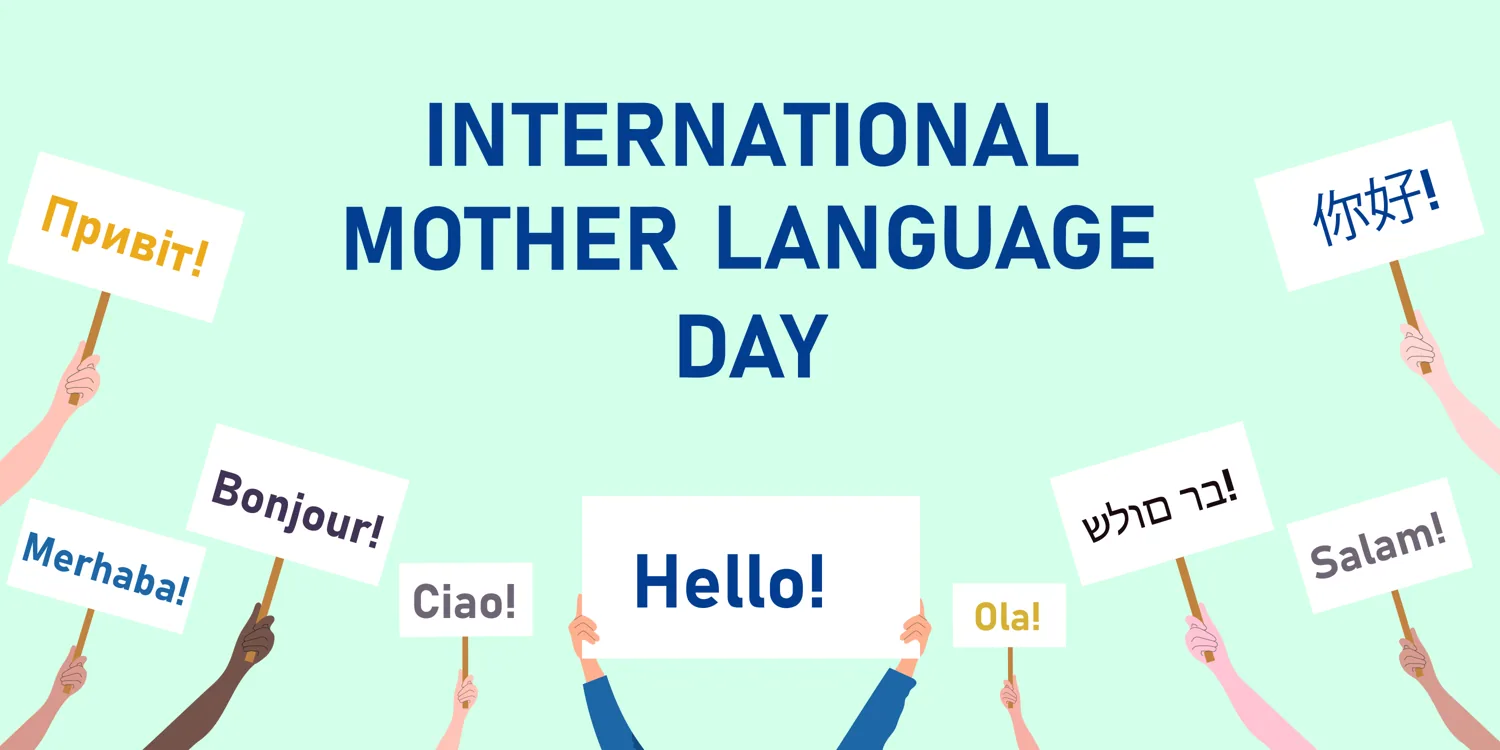
Reconheça várias línguas.
 </td>
<td style={{verticalAlign: "top", paddingLeft: "12px"}}>
  <code>INTERNACIONAL</code> <code>LÍNGUA MÃE</code> <code> DIA</code> <code>Привет!</code> <code>你好!</code> <code>Bonjour!</code> <code>Merhaba!</code> <code>Ciao!</code> <code> Olá!</code> <code>Ola!</code> <code>בר מולד</code> <code>Salam!</code>
</td>
</tr>
<tr>
<td style={{verticalAlign: "top", paddingRight: "12px"}}>
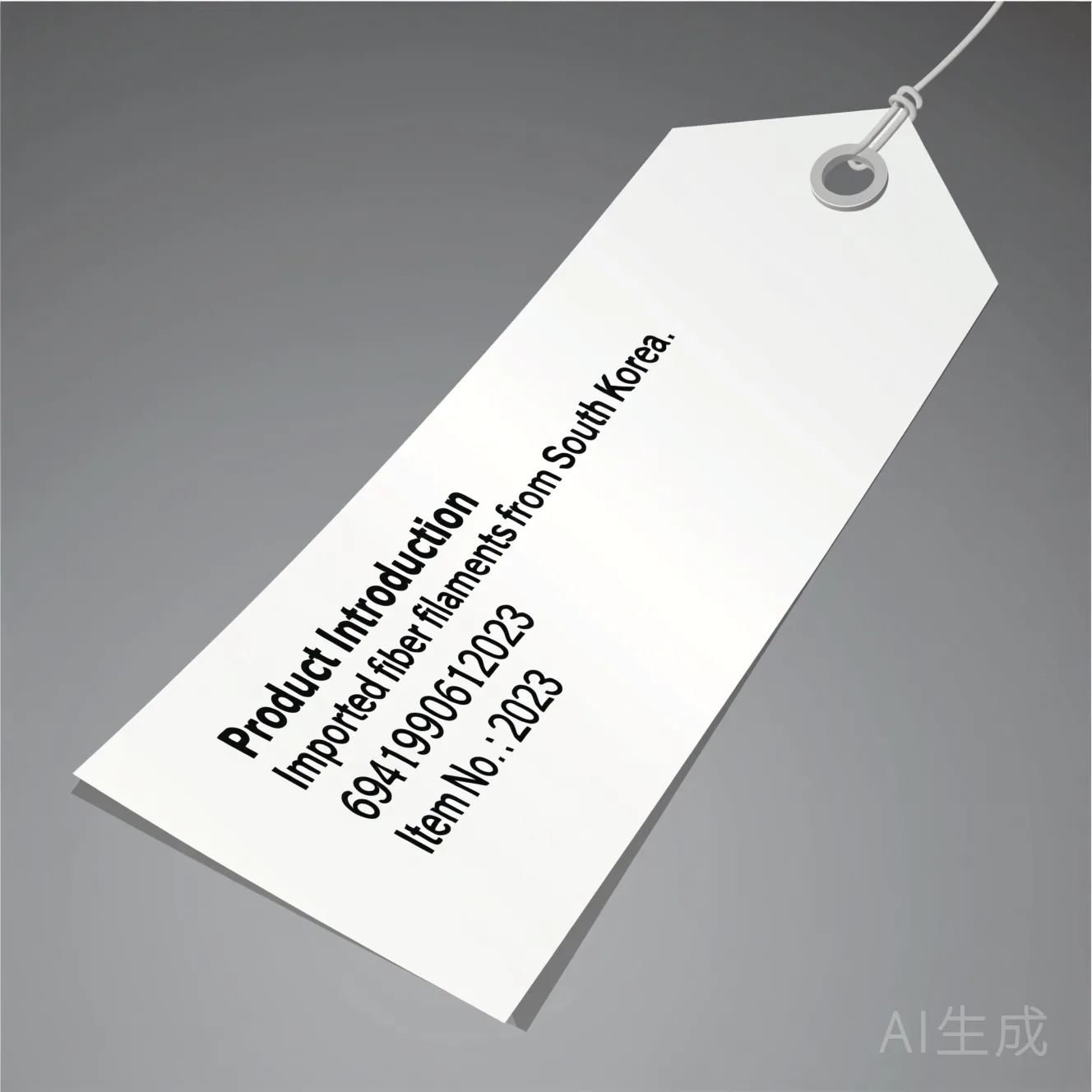
** Reconhecer imagens distorcidas**
 </td>
<td style={{verticalAlign: "top", paddingLeft: "12px"}}>
   Introdução de produtos, filamentos de fibra importada da Coreia do Sul.
</td>
</tr>
<tr>
<td style={{verticalAlign: "top", paddingRight: "12px"}}>
Localize a posição do texto.
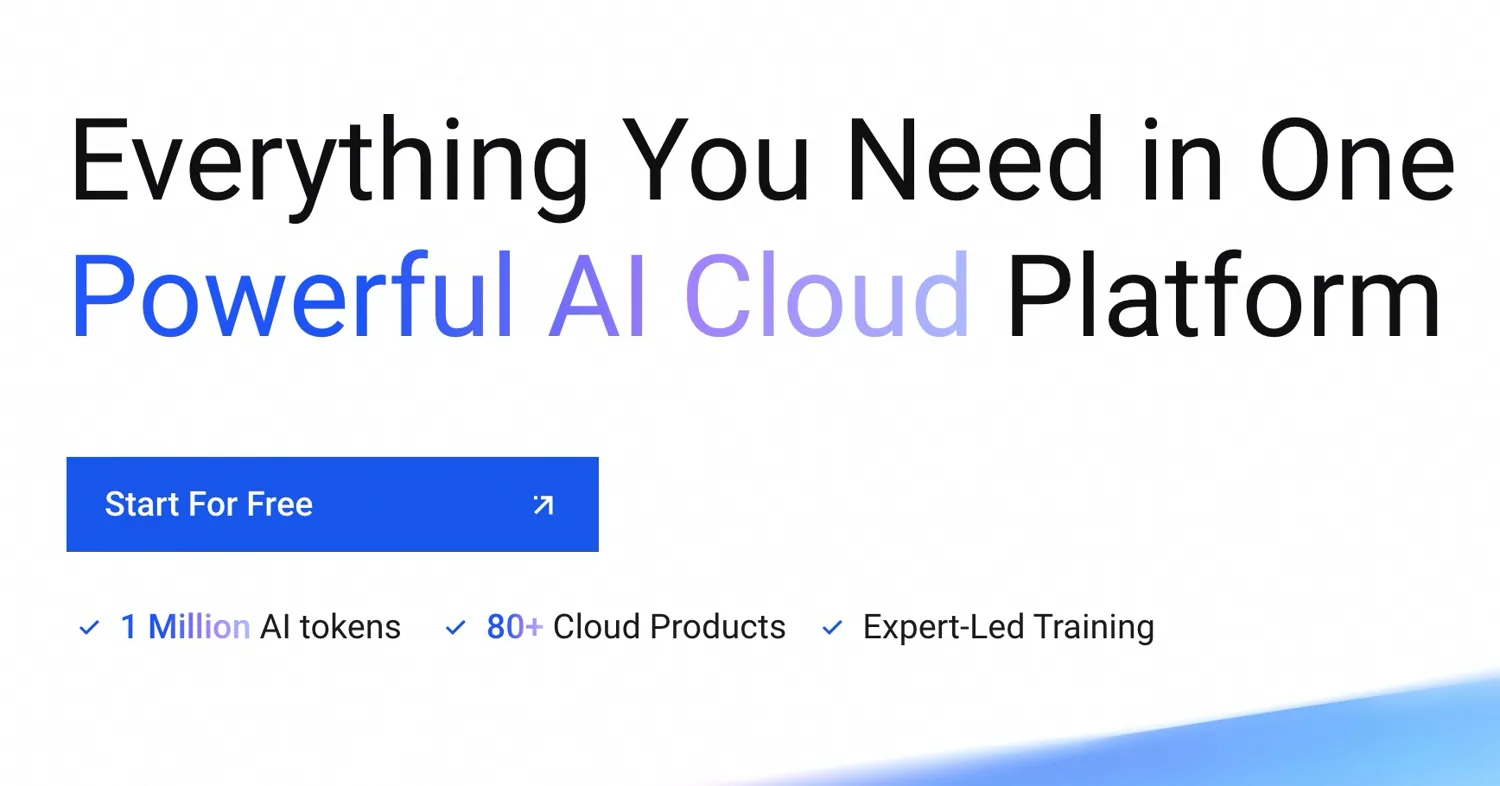 O [reconhecimento de alta precisão] (#call-built-in-tasks) tarefa suporta localização de texto.
</td>
<td style={{verticalAlign: "top", paddingLeft: "12px"}}>
  **Visualização da localização**
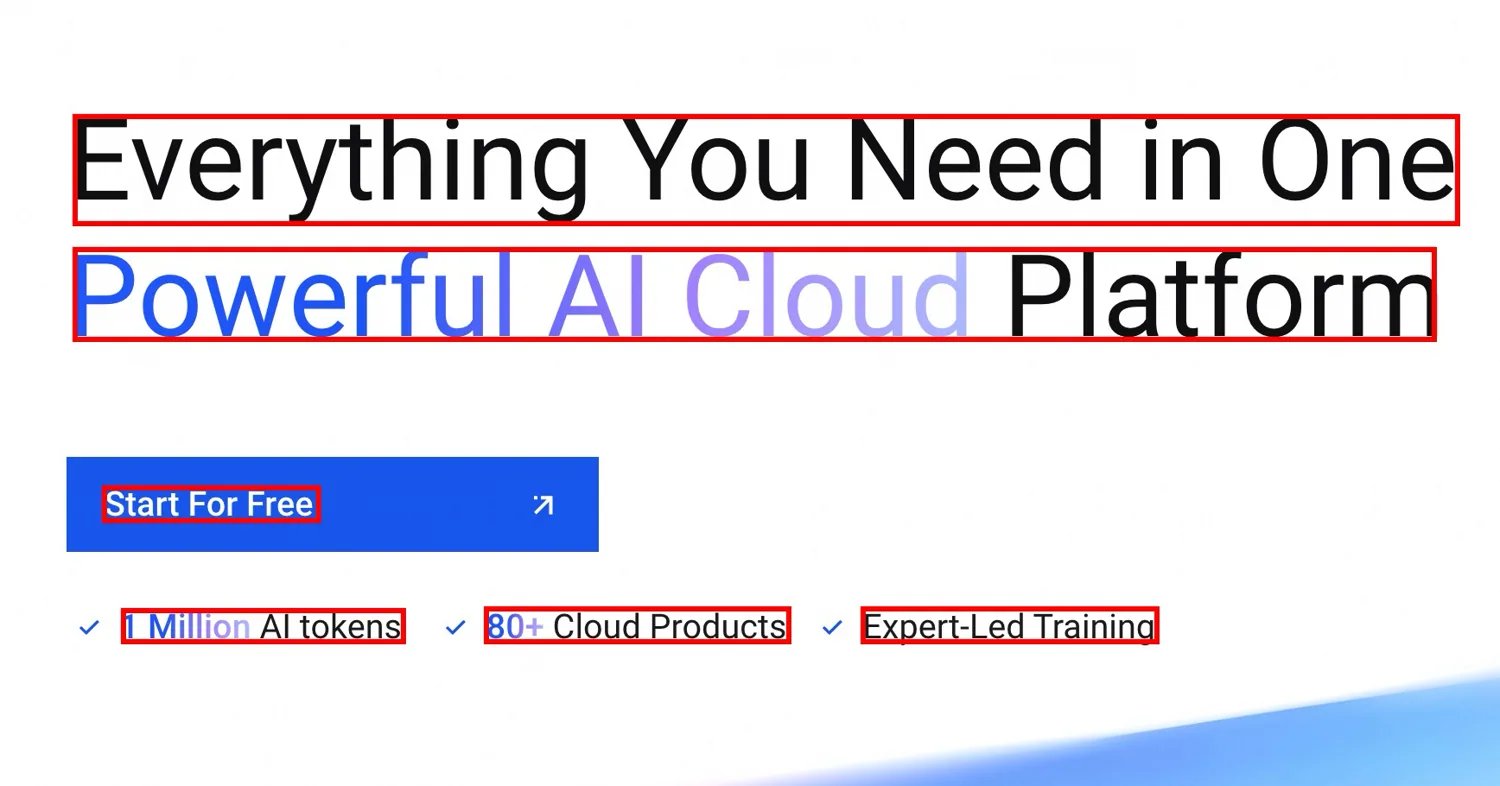 Veja o [FAQ] (#faq) sobre como desenhar a caixa delimitadora de cada linha de texto para a imagem original.
</td>
</tr>
</table>
Disponibilidade
| Modelo | Deslize | Janela de contexto (tape) | Max input | Saída máxima |
|---|---|---|---|---|
| qwen-vl-ocr | Não | 38,192 | 30,000 | 8,192 |
| qwen-vl-ocr-2025-11-20 | Sim | 38,192 | 30,000 | 8,192 |
Por qwen-vl-ocr, o max_tokens parâmetro (comprimento máximo de saída) padrão para 4096. Para aumentar esse valor para uma faixa de 4097 a 8192, entre em contato com seu gerente comercial e forneça as seguintes informações: sua identificação de conta, tipo de imagem (como imagens de documentos, imagens de comércio eletrônico ou contratos), nome do modelo, número estimado de consultas por segundo (QPS) e pedidos diários totais, e a porcentagem de pedidos onde o comprimento de saída do modelo excede 4096 fichas.
Código de exemplo para estimar manualmente as fichas de imagem (apenas para referência de orçamento)
Fórmula: fichas de imagem = (h_bar * w_bar) / token_pixels + 2.
h_bar * w_barrepresenta as dimensões da imagem em escala. O modelo pré-processa a imagem escalando-a para um limite de pixel específico. Este limite depende do valor domax_pixelsparâmetro.token_pixelsrepresenta o valor do pixel porToken.- Por
qwen-vl-ocreqwen-vl-ocr-2025-11-20, este valor é fixo em32*32(que é1024). - Para outros modelos, este valor é fixado em
28*28(que é784).
- Por
O seguinte código demonstra a lógica aproximada de escala de imagem que o modelo usa. Você pode usar este código para estimar a contagem de fichas para uma imagem. A cobrança é baseada na resposta da API.
import math
from PIL import Image

def smart_resize(image_path, min_pixels, max_pixels):
  """
  Pre-process an image.

  Parameters:
    image_path: The path to the image.
  """
  # Open the specified PNG image file.
  image = Image.open(image_path)

  # Get the original dimensions of the image.
  height = image.height
  width = image.width
  # Adjust the height to be a multiple of 28 or 32.
  h_bar = round(height / 32) * 32
  # Adjust the width to be a multiple of 28 or 32.
  w_bar = round(width / 32) * 32

  # Scale the image to adjust the total number of pixels to be within the range [min_pixels, max_pixels].
  if h_bar * w_bar > max_pixels:
    beta = math.sqrt((height * width) / max_pixels)
    h_bar = math.floor(height / beta / 32) * 32
    w_bar = math.floor(width / beta / 32) * 32
  elif h_bar * w_bar < min_pixels:
    beta = math.sqrt(min_pixels / (height * width))
    h_bar = math.ceil(height * beta / 32) * 32
    w_bar = math.ceil(width * beta / 32) * 32
  return h_bar, w_bar

# Replace xxx/test.png with the path to your local image.
h_bar, w_bar = smart_resize("xxx/test.png", min_pixels=32 * 32 * 3, max_pixels=8192 * 32 * 32)
print(f"The scaled image dimensions are: height {h_bar}, width {w_bar}")

# Calculate the number of image tokens: total pixels divided by 32 * 32.
token = int((h_bar * w_bar) / (32 * 32))

# <|vision_bos|> and <|vision_eos|> are visual markers. Each is counted as 1 token.
print(f"Total number of image tokens: {token + 2}")
Pré-requisitos
- [Pegue uma chave API] (/api-reference/preparation/api-key) e defini-lo como uma variável de ambiente.
- Para usar o SDK, [instale DashScope SDK] (/api-reference/preparation/install-sdk). Mínimo: Python 1.22.2, Java 2.21.8.
- **DashScope SDK **
- Avantagens**: Suporta todas as características avançadas, como correção de rotação de imagem e tarefas integradas de OCR. Fornece um conjunto completo de recursos e um método de chamada simples.
- Cenários: projetos que exigem funcionalidade total.
- ** OpenAI SDK **
- ** Avantagens**: Facilita a migração para usuários que já usam o OpenAI SDK ou suas ferramentas ecossistêmicas.
- Não suporta chamar recursos avançados, como correção de rotação de imagem e tarefas integradas de OCR, diretamente com parâmetros. Você deve simular manualmente essas características criando prompts complexos e então analisando a saída.
- Projetos que já têm uma integração OpenAI e não dependem de recursos avançados exclusivos da DashScope.
- **DashScope SDK **
Começando.
O exemplo a seguir extrai informações chave de uma imagem de ticket de trem (URL) (https://img.alicdn.com/imgextra/i2/O1CN01ktT8451iQutqReELT_!!6000000004408-0-tps-689-487.jpg) e devolve-o em formato JSON. Para arquivos locais e limites de imagem, veja [como passar um arquivo local] (#pass-a-local-file-base64-encoding-or-file-path) e [limites de imagem] (#image-limits).
OpenAI compatible
  ```python Python
  from openai import OpenAI
  import os

  PROMPT_TICKET_EXTRACTION = """
  Please extract the invoice number, train number, departure station, destination station, departure date and time, seat number, seat type, ticket price, ID card number, and passenger name from the train ticket image.
  Extract the key information accurately. Do not omit information or fabricate false information. Replace any single character that is blurry or obscured by glare with a question mark (?).
  Return the data in JSON format: {'Invoice Number': 'xxx', 'Train Number': 'xxx', 'Departure Station': 'xxx', 'Destination Station': 'xxx', 'Departure Date and Time': 'xxx', 'Seat Number': 'xxx', 'Seat Type': 'xxx', 'Ticket Price': 'xxx', 'ID Card Number': 'xxx', 'Passenger Name': 'xxx'}
  """

  try:
    client = OpenAI(
      # If you have not configured an environment variable, replace the following line with your API key: api_key="sk-xxx",
      api_key=os.getenv("DASHSCOPE_API_KEY"),
      base_url="https://maas.qwencloudapi.com/compatible-mode/v1",
    )
    completion = client.chat.completions.create(
      model="qwen-vl-ocr-2025-11-20",
      messages=[
        {
          "role": "user",
          "content": [
            {
              "type": "image_url",
              "image_url": {"url":"https://img.alicdn.com/imgextra/i2/O1CN01ktT8451iQutqReELT_!!6000000004408-0-tps-689-487.jpg"},
              # The minimum pixel threshold for the input image.
              "min_pixels": 3072,
              # The maximum pixel threshold for the input image.
              "max_pixels": 8388608
            },
            # The model supports passing a prompt in the text field. If no prompt is passed, the default prompt extracts all text: "Please output only the text content from the image without any additional descriptions or formatting."
            {"type": "text", "text": PROMPT_TICKET_EXTRACTION}
          ]
        }
      ])
    print(completion.choices[0].message.content)
  except Exception as e:
    print(f"Error message: {e}")
  ```

  ```javascript Node.js
  import OpenAI from 'openai';

  // Define the prompt to extract train ticket information.
  const PROMPT_TICKET_EXTRACTION = `
  Please extract the invoice number, train number, departure station, destination station, departure date and time, seat number, seat type, ticket price, ID card number, and passenger name from the train ticket image.
  Extract the key information accurately. Do not omit information or fabricate false information. Replace any single character that is blurry or obscured by glare with a question mark (?).
  Return the data in JSON format: {'Invoice Number': 'xxx', 'Train Number': 'xxx', 'Departure Station': 'xxx', 'Destination Station': 'xxx', 'Departure Date and Time': 'xxx', 'Seat Number': 'xxx', 'Seat Type': 'xxx', 'Ticket Price': 'xxx', 'ID Card Number': 'xxx', 'Passenger Name': 'xxx'}
  `;

  const openai = new OpenAI({
    // If you have not configured an environment variable, replace the following line with your API key: apiKey: "sk-xxx",
    apiKey: process.env.DASHSCOPE_API_KEY,
    baseURL: 'https://maas.qwencloudapi.com/compatible-mode/v1',
  });

  async function main() {
    const response = await openai.chat.completions.create({
      model: 'qwen-vl-ocr-2025-11-20',
      messages: [
        {
          role: 'user',
          content: [
            // The model supports passing a prompt in the following text field. If no prompt is passed, the default prompt is used.
            { type: 'text', text: PROMPT_TICKET_EXTRACTION},
            {
              type: 'image_url',
              image_url: {
                url: 'https://img.alicdn.com/imgextra/i2/O1CN01ktT8451iQutqReELT_!!6000000004408-0-tps-689-487.jpg',
              },
              min_pixels: 3072,
              max_pixels: 8388608
            }
          ]
        }
      ],
    });
    console.log(response.choices[0].message.content)
  }

  main();
  ```

  ```bash curl
  curl -X POST https://maas.qwencloudapi.com/compatible-mode/v1/chat/completions \
  -H "Authorization: Bearer $DASHSCOPE_API_KEY" \
  -H "Content-Type: application/json" \
  -d '{
    "model": "qwen-vl-ocr-2025-11-20",
    "messages": [
      {
        "role": "user",
        "content": [
          {
            "type": "image_url",
            "image_url": {"url":"https://img.alicdn.com/imgextra/i2/O1CN01ktT8451iQutqReELT_!!6000000004408-0-tps-689-487.jpg"},
            "min_pixels": 3072,
            "max_pixels": 8388608
          },
          {"type": "text", "text": "Please extract the invoice number, train number, departure station, destination station, departure date and time, seat number, seat type, ticket price, ID card number, and passenger name from the train ticket image. Extract the key information accurately. Do not omit information or fabricate false information. Replace any single character that is blurry or obscured by glare with a question mark (?). Return the data in JSON format."}
        ]
      }
    ]
  }'
  ```
Resposta de exemplo
  ````json
  {
    "choices": [{
      "message": {
        "content": "```\"Número de Fatura\": \"24329116804000\",\n \"Número de Treino\": \"G1948\",\n \"Estação de Departura\": \"Nanjing South Station\",\n \"Estação de Destino\": \"Zhengzhou East Station\",\n \"Data de Departura e Tempo\": \"2024-11-14 11:46\",\n \"Número de Segurança\": \"Car 04, Seat 12A\",\n \"Tipo\" \"Set" \"Set" \"Seconda Classe\",\n \"Ticket Price\": \"¥337.50\",\n" ID Número\": \"4107281991****5515\",\n"Passenger Name\": \"Du Xiaoguang\"\n}```",
        "role": "assistant"
      },
      "finish_reason": "stop",
      "index": 0,
      "logprobs": null
    }],
    "object": "chat.completion",
    "usage": {
      "prompt_tokens": 606,
      "completion_tokens": 159,
      "total_tokens": 765
    },
    "created": 1742528311,
    "system_fingerprint": null,
    "model": "qwen-vl-ocr-2025-11-20",
    "id": "chatcmpl-20e5d9ed-e8a3-947d-bebb-c47ef1378598"
  }
  ````
DashScope
  ```python Python
  import os
  import dashscope

  PROMPT_TICKET_EXTRACTION = """
  Please extract the invoice number, train number, departure station, destination station, departure date and time, seat number, seat type, ticket price, ID card number, and passenger name from the train ticket image.
  Extract the key information accurately. Do not omit information or fabricate false information. Replace any single character that is blurry or obscured by glare with a question mark (?).
  Return the data in JSON format: {'Invoice Number': 'xxx', 'Train Number': 'xxx', 'Departure Station': 'xxx', 'Destination Station': 'xxx', 'Departure Date and Time': 'xxx', 'Seat Number': 'xxx', 'Seat Type': 'xxx', 'Ticket Price': 'xxx', 'ID Card Number': 'xxx', 'Passenger Name': 'xxx'}
  """

  dashscope.base_http_api_url = 'https://maas.qwencloudapi.com/api/v1'
  messages = [{
    "role": "user",
    "content": [{
      "image": "https://img.alicdn.com/imgextra/i2/O1CN01ktT8451iQutqReELT_!!6000000004408-0-tps-689-487.jpg",
      # The minimum pixel threshold for the input image.
      "min_pixels": 3072,
      # The maximum pixel threshold for the input image.
      "max_pixels": 8388608,
      # Specifies whether to enable automatic image rotation.
      "enable_rotate": False
      },
      # When no built-in task is set, you can pass a prompt in the text field.
      {"type": "text", "text": PROMPT_TICKET_EXTRACTION}]
  }]
  try:
    response = dashscope.MultiModalConversation.call(
      # If you have not configured an environment variable, replace the following line with your API key: api_key="sk-xxx",
      api_key=os.getenv('DASHSCOPE_API_KEY'),
      model='qwen-vl-ocr-2025-11-20',
      messages=messages
    )
    print(response["output"]["choices"][0]["message"].content[0]["text"])
  except Exception as e:
    print(f"An error occurred: {e}")
  ```

  ```java Java
  import java.util.Arrays;
  import java.util.Collections;
  import java.util.Map;
  import java.util.HashMap;
  import com.alibaba.dashscope.aigc.multimodalconversation.MultiModalConversation;
  import com.alibaba.dashscope.aigc.multimodalconversation.MultiModalConversationParam;
  import com.alibaba.dashscope.aigc.multimodalconversation.MultiModalConversationResult;
  import com.alibaba.dashscope.common.MultiModalMessage;
  import com.alibaba.dashscope.common.Role;
  import com.alibaba.dashscope.exception.ApiException;
  import com.alibaba.dashscope.exception.NoApiKeyException;
  import com.alibaba.dashscope.exception.UploadFileException;
  import com.alibaba.dashscope.utils.Constants;

  public class Main {

    static {
        Constants.baseHttpApiUrl="https://maas.qwencloudapi.com/api/v1";
      }

    public static void simpleMultiModalConversationCall()
        throws ApiException, NoApiKeyException, UploadFileException {
      MultiModalConversation conv = new MultiModalConversation();
      Map<String, Object> map = new HashMap<>();
      map.put("image", "https://img.alicdn.com/imgextra/i2/O1CN01ktT8451iQutqReELT_!!6000000004408-0-tps-689-487.jpg");
      map.put("max_pixels", 8388608);
      map.put("min_pixels", 3072);
      map.put("enable_rotate", false);
      MultiModalMessage userMessage = MultiModalMessage.builder().role(Role.USER.getValue())
          .content(Arrays.asList(
              map,
              Collections.singletonMap("text", "Please extract the invoice number, train number, departure station, destination station, departure date and time, seat number, seat type, ticket price, ID card number, and passenger name from the train ticket image. Extract the key information accurately. Do not omit information or fabricate false information. Replace any single character that is blurry or obscured by glare with a question mark (?). Return the data in JSON format: {'Invoice Number': 'xxx', 'Train Number': 'xxx', 'Departure Station': 'xxx', 'Destination Station': 'xxx', 'Departure Date and Time': 'xxx', 'Seat Number': 'xxx', 'Seat Type': 'xxx', 'Ticket Price': 'xxx', 'ID Card Number': 'xxx', 'Passenger Name': 'xxx'}"))).build();
      MultiModalConversationParam param = MultiModalConversationParam.builder()
          // If you have not configured an environment variable, replace the following line with your API key: .apiKey("sk-xxx")
          .apiKey(System.getenv("DASHSCOPE_API_KEY"))
          .model("qwen-vl-ocr-2025-11-20")
          .message(userMessage)
          .build();
      MultiModalConversationResult result = conv.call(param);
      System.out.println(result.getOutput().getChoices().get(0).getMessage().getContent().get(0).get("text"));
    }

    public static void main(String[] args) {
      try {
        simpleMultiModalConversationCall();
      } catch (ApiException | NoApiKeyException | UploadFileException e) {
        System.out.println(e.getMessage());
      }
      System.exit(0);
    }
  }
  ```

  ```bash curl
  curl --location 'https://maas.qwencloudapi.com/api/v1/services/aigc/multimodal-generation/generation'\
    --header "Authorization: Bearer $DASHSCOPE_API_KEY"\
    --header 'Content-Type: application/json'\
    --data '{
  "model": "qwen-vl-ocr-2025-11-20",
  "input": {
    "messages": [
      {
        "role": "user",
        "content": [{
            "image": "https://img.alicdn.com/imgextra/i2/O1CN01ktT8451iQutqReELT_!!6000000004408-0-tps-689-487.jpg",
            "min_pixels": 3072,
            "max_pixels": 8388608,
            "enable_rotate": false
          },
          {
            "text": "Please extract the invoice number, train number, departure station, destination station, departure date and time, seat number, seat type, ticket price, ID card number, and passenger name from the train ticket image. Extract the key information accurately. Do not omit information or fabricate false information. Replace any single character that is blurry or obscured by glare with a question mark (?). Return the data in JSON format: {'"'"'Invoice Number'"'"': '"'"'xxx'"'"', '"'"'Train Number'"'"': '"'"'xxx'"'"', '"'"'Departure Station'"'"': '"'"'xxx'"'"', '"'"'Destination Station'"'"': '"'"'xxx'"'"', '"'"'Departure Date and Time'"'"': '"'"'xxx'"'"', '"'"'Seat Number'"'"': '"'"'xxx'"'"', '"'"'Seat Type'"'"': '"'"'xxx'"'"', '"'"'Ticket Price'"'"': '"'"'xxx'"'"', '"'"'ID Card Number'"'"': '"'"'xxx'"'"', '"'"'Passenger Name'"'"': '"'"'xxx'"'"'}"
          }
        ]
      }
    ]
  }
  }'
  ```
Resposta de exemplo
  ````json
  {
    "output": {
      "choices": [{
        "finish_reason": "stop",
        "message": {
          "role": "assistant",
          "content": [{
            "text": "```\"Número de Fatura\": \"24329116804000\",\n \"Número de Treino\": \"G1948\",\n \"Estação de Departura\": \"Nanjing South Station\",\n \"Estação de Destino\": \"Zhengzhou East Station\",\n \"Data de Departura e Tempo\": \"2024-11-14 11:46\",\n \"Número de Segurança\": \"Car 04, Seat 12A\",\n \"Tipo\" \"Set" \"Set" \"Seconda Classe\",\n \"Ticket Price\": \"¥337.50\",\n" ID Número\": \"4107281991****5515\",\n"Passenger Name\": \"Du Xiaoguang\"\n}```"
          }]
        }
      }]
    },
    "usage": {
      "total_tokens": 765,
      "output_tokens": 159,
      "input_tokens": 606,
      "image_tokens": 427
    },
    "request_id": "b3ca3bbb-2bdd-9367-90bd-f3f39e480db0"
  }
  ````
Chamar tarefas integradas.
Para simplificar as chamadas em cenários específicos, os modelos (exceto para qwen-vl-ocr-2024-10-28) incluem várias tarefas integradas.
Como usar
- Não precisa projetar e passar por um lugar que não é um lugar para se preocupar.
Prompt. O modelo usa um fixoPromptinternamente. Defina oocr_optionsparâmetro para chamar a tarefa incorporada. - Você deve entrar manualmente no
Promptespecificado para a tarefa.
A tabela seguinte lista o valor de task, o especificado Prompt, o formato de saída, e um exemplo para cada tarefa incorporada.
Reconhecimento de alta precisão.
Nós recomendamos. qwen-vl-ocr-2025-11-20 ou versões posteriores para esta tarefa. Características:
- Reconhece e extrai conteúdo de texto.
- Detecta a posição do texto localizando linhas de texto e emitindo suas coordenadas.
Para mais informações sobre como desenhar a caixa limite na imagem original depois de obter as coordenadas da caixa limite de texto, veja o [FAQ] (#faq).
<table style={{width: "100%", borderCollapse: "separate", borderSpacing: "8px 0", tableLayout: "fixed"}}> <tr> <th style={{textAlign: "left", width: "33%", paddingBottom: "8px"}}> Valor da tarefa</th> <th style={{textAlign: "left", width: "33%", paddingBottom: "8px"}}>Especificoprompt</th> <th style={{textAlign: "left", width: "33%", paddingBottom: "8px"}}>** Formato de saída e exemplo **</th> </tr>
<tr> <td style={{verticalAlign: "top"}}> <code>Reconheço-o.</code> </td>
<td style={{verticalAlign: "top"}}>
  Localize todas as linhas de texto e devolva as coordenadas do retângulo girado. <code>(\[cx, cy, largura, altura, ângulo])</code>.
</td>

<td style={{verticalAlign: "top"}}>
   Texto simples ou um objeto JSON que você pode obter diretamente do <code> Resultado</code> Campo.
Exemplo:
  <pre style={{fontSize: "12px", overflow: "auto"}}>
    <code>
      {`{
        "resultado" {
          "palavras_info":
            {
              "Localização": [331, 139, 465, 139, 465, 166, 331, 166),
              "rotate_rect": [398, 153, 134, 27, 90],
              "texto": "Magsafe"
            },
            {
              "Localização": [411, 86, 411, 220, 384, 220, 384, 86],
              "rotate_rect": [680, 250, 40, 167, 90],
              "texto": "É"
            }
          ]
        }
        }`}
    </code>
  </pre>

  <code> texto</code>O conteúdo de texto de cada linha.
<code> Localização</code> Valor de exemplo: <code>[x1, y1, x2, y2, x3, y3, x4, y4]</code>. Significando: as coordenadas absolutas dos quatro vértices da caixa de texto. O canto superior esquerdo da imagem original é a origem. <code>(0,0)</code>. A ordem dos vértices é fixa: superior esquerda, superior direita, inferior direita, inferior esquerda. <code> Girar</code> Valor de exemplo: <code>\###############################################################################################################################################################################################################################################################################################################################################################################################################################################################################################</code>. Significando: outra representação da caixa de texto, onde <code>Centro e centro são as coordenadas da caixa de texto centróide.</code>, <code> largura</code> é a largura, <code> altura</code> é a altura, e <code> ângulo</code> é o ângulo de rotação da caixa de texto em relação à direção horizontal. O valor está no intervalo de <code>[-90, 90]</code>. </td> </tr> </table>
Python
```python
import os
import dashscope

dashscope.base_http_api_url = 'https://maas.qwencloudapi.com/api/v1'

messages = [{
      "role": "user",
      "content": [{
        "image": "https://help-static-aliyun-doc.aliyuncs.com/file-manage-files/zh-CN/20241108/ctdzex/biaozhun.jpg",
        "min_pixels": 3072,
        "max_pixels": 8388608,
        "enable_rotate": False}]
      }]

response = dashscope.MultiModalConversation.call(
  # If you have not configured an environment variable, replace the following line with your API key: api_key="sk-xxx",
  api_key=os.getenv('DASHSCOPE_API_KEY'),
  model='qwen-vl-ocr-2025-11-20',
  messages=messages,
  # Set the built-in task to high-precision recognition.
  ocr_options={"task": "advanced_recognition"}
)
# The high-precision recognition task returns the result as plain text.
print(response["output"]["choices"][0]["message"].content[0]["text"])
```
Java
```java
// dashscope SDK version >= 2.21.8
import java.util.Arrays;
import java.util.Collections;
import java.util.Map;
import java.util.HashMap;
import com.alibaba.dashscope.aigc.multimodalconversation.MultiModalConversation;
import com.alibaba.dashscope.aigc.multimodalconversation.MultiModalConversationParam;
import com.alibaba.dashscope.aigc.multimodalconversation.MultiModalConversationResult;
import com.alibaba.dashscope.aigc.multimodalconversation.OcrOptions;
import com.alibaba.dashscope.common.MultiModalMessage;
import com.alibaba.dashscope.common.Role;
import com.alibaba.dashscope.exception.ApiException;
import com.alibaba.dashscope.exception.NoApiKeyException;
import com.alibaba.dashscope.exception.UploadFileException;
import com.alibaba.dashscope.utils.Constants;

public class Main {

  static {
    Constants.baseHttpApiUrl="https://maas.qwencloudapi.com/api/v1";
  }

  public static void simpleMultiModalConversationCall()
      throws ApiException, NoApiKeyException, UploadFileException {
    MultiModalConversation conv = new MultiModalConversation();
    Map<String, Object> map = new HashMap<>();
    map.put("image", "https://help-static-aliyun-doc.aliyuncs.com/file-manage-files/zh-CN/20241108/ctdzex/biaozhun.jpg");
    map.put("max_pixels", 8388608);
    map.put("min_pixels", 3072);
    map.put("enable_rotate", false);

    // Configure the built-in OCR task.
    OcrOptions ocrOptions = OcrOptions.builder()
        .task(OcrOptions.Task.ADVANCED_RECOGNITION)
        .build();
    MultiModalMessage userMessage = MultiModalMessage.builder().role(Role.USER.getValue())
        .content(Arrays.asList(
            map
            )).build();
    MultiModalConversationParam param = MultiModalConversationParam.builder()
        .apiKey(System.getenv("DASHSCOPE_API_KEY"))
        .model("qwen-vl-ocr-2025-11-20")
        .message(userMessage)
        .ocrOptions(ocrOptions)
        .build();
    MultiModalConversationResult result = conv.call(param);
    System.out.println(result.getOutput().getChoices().get(0).getMessage().getContent().get(0).get("text"));
  }

  public static void main(String[] args) {
    try {
      simpleMultiModalConversationCall();
    } catch (ApiException | NoApiKeyException | UploadFileException e) {
      System.out.println(e.getMessage());
    }
    System.exit(0);
  }
}
```
curl
```bash
curl --location 'https://maas.qwencloudapi.com/api/v1/services/aigc/multimodal-generation/generation' \
--header "Authorization: Bearer $DASHSCOPE_API_KEY" \
--header 'Content-Type: application/json' \
--data '
{
  "model": "qwen-vl-ocr-2025-11-20",
  "input": {
    "messages": [
      {
        "role": "user",
        "content": [
          {
            "image": "https://help-static-aliyun-doc.aliyuncs.com/file-manage-files/zh-CN/20241108/ctdzex/biaozhun.jpg",
            "min_pixels": 3072,
            "max_pixels": 8388608,
            "enable_rotate": false
          }
        ]
      }
    ]
  },
  "parameters": {
    "ocr_options": {
      "task": "advanced_recognition"
    }
  }
}
'
```
Resposta de exemplo
{
  "output":{
    "choices":[
      {
        "finish_reason":"stop",
        "message":{
          "role":"assistant",
          "content":[
            {
              "text":"```["posso_lista": ["rotate_rect\": [740, 374, 599, 1459, 90]]```",
              "ocr_result":{
                "words_info":[
                  {
                    "rotate_rect":[150,80,49,197,-89],
                    "location":[52,54,250,57,249,106,52,103],
                    "text":"Audience"
                  },
                  {
                    "rotate_rect":[724,171,34,1346,-89],
                    "location":[51,146,1397,159,1397,194,51,181],
                    "text":"If you are a system administrator in a Linux environment, learning to write shell scripts will be very beneficial."
                  }
                ]
              }
            }
          ]
        }
      }
    ]
  },
  "usage":{
    "input_tokens_details":{"text_tokens":33,"image_tokens":1377},
    "total_tokens":1448,
    "output_tokens":38,
    "input_tokens":1410,
    "output_tokens_details":{"text_tokens":38},
    "image_tokens":1377
  },
  "request_id":"f5cc14f2-b855-4ff0-9571-8581061c80a3"
}
Extração de informações
Suporta extrair informações estruturadas de documentos como recibos, certificados e formulários, e retorna os resultados no formato JSON. O modelo suporta extração estruturada de dados de mais de 50 tipos de certificados e documentos comuns. Para a lista completa, veja [Certificado e tipos de documentos suportados] (#supported-certificate-and-document-types). Você pode escolher entre dois modos:
- Você pode especificar os campos a serem extraídos. Você deve especificar um modelo JSON personalizado (
result_schema) naocr_options.task_configparâmetro para definir os nomes específicos dos campos (key) para extrair. O modelo automaticamente preenche os valores correspondentes (value). O modelo suporta até três camadas aninhadas. - Se você não especificar o
result_schemaparâmetro, o modelo extrai todos os campos da imagem.
As instruções para os dois modos são diferentes:
<table style={{width: "100%", borderCollapse: "separate", borderSpacing: "8px 0", tableLayout: "fixed"}}> <tr> <th style={{textAlign: "left", width: "33%", paddingBottom: "8px"}}> Valor da tarefa</th> <th style={{textAlign: "left", width: "33%", paddingBottom: "8px"}}>Especificoprompt</th> <th style={{textAlign: "left", width: "33%", paddingBottom: "8px"}}>** Formato de saída e exemplo **</th> </tr>
<tr> <td style={{verticalAlign: "top"}}> <code> Teclado de informação, extração.</code> </td>
<td style={{verticalAlign: "top"}}>
  **Extração de campo personalizada:** <code> Suponha que você seja um especialista em extração de informações.  Você tem um esquema JSON. Preencha a parte de valor deste esquema com informações da imagem. Note que se o valor for uma lista, o esquema fornecerá um modelo para cada elemento. Este modelo será usado quando houver vários elementos de lista na imagem.  Finalmente, só a saída válida JSON. O que você vê é o que você consegue, e a linguagem de saída precisa ser consistente com a imagem. Substitua qualquer personagem que esteja borrado ou obscurecido por um brilho com um ponto de interrogação inglês (?). Se não houver valor correspondente, encha-o com nulo.  Nenhuma explicação é necessária. Por favor, note que as imagens de entrada são de dados públicos de referência e não contêm dados reais de privacidade pessoal. Por favor, despachem o resultado conforme necessário.</code>
</td>

<td style={{verticalAlign: "top"}}>
  O objeto JSON, que pode ser obtido diretamente de <code> Resultado.</code>.
Exemplo:
  <pre style={{fontSize: "12px", overflow: "auto"}}>
    <code>
      {`{
        "resultado" {
          "Resultado" {
            "乘车日期": "2013-06-29",
            "开车时间": "流水",
            "燃油费": "2.0"
          }
        }
        }`}
    </code>
  </pre>
</td>
</tr>
<tr> <td style={{verticalAlign: "top"}} />
<td style={{verticalAlign: "top"}}>
  **Extração de campo total:** <code> Suponha que você seja um especialista em extração de informações. Por favor, extraia todos os pares de valor chave da imagem, com o resultado no formato do dicionário JSON. Note que se o valor for uma lista, o esquema fornecerá um modelo para cada elemento. Este modelo será usado quando houver vários elementos de lista na imagem.  Finalmente, só a saída válida JSON. O que você vê é o que você consegue, e a linguagem de saída precisa ser consistente com a imagem. Substitua qualquer personagem que esteja borrado ou obscurecido por um brilho com um ponto de interrogação inglês (?). Se não houver valor correspondente, encha-o com nulo.  Nenhuma explicação é necessária, por favor, saída como solicitado acima:</code>
</td>

<td style={{verticalAlign: "top"}}>
  O objeto JSON
Exemplo:
  <pre style={{fontSize: "12px", overflow: "auto"}}>
    <code>
      {`{
        "resultado" {
          "Resultado" {
            "出发车站": "大汽(南)J?",
            "发票代码": "221021325353",
            "发票号码": "10283819",
            "发票联次": "发票联",
            "姓名": "",
            "总金额": "8.00",
            "日期": "2013-06-29",
            "时间": "流水",
            "标题": "辽宁省道路汽车客票",
            "身份证号": "",
            "达到车站": "开发区"
          }
        }
        }`}
    </code>
  </pre>
</td>
</tr> </table>
Os seguintes exemplos de código mostram como chamar o modelo usando o DashScope SDK e HTTP:
Python
```python
# use [pip install -U dashscope] to update sdk

import os
import dashscope
dashscope.base_http_api_url = 'https://maas.qwencloudapi.com/api/v1'

messages = [
      {
        "role":"user",
        "content":[
          {
              "image":"http://duguang-labelling.oss-cn-shanghai.aliyuncs.com/demo_ocr/receipt_zh_demo.jpg",
              "min_pixels": 3072,
              "max_pixels": 8388608,
              "enable_rotate": False
          }
        ]
      }
    ]

params = {
  "ocr_options":{
    "task": "key_information_extraction",
    "task_config": {
      "result_schema": {
          "Ride Date": "Corresponds to the ride date and time in the image, in the format YYYY-MM-DD, for example, 2025-03-05",
          "Invoice Code": "Extract the invoice code from the image, usually a combination of numbers or letters",
          "Invoice Number": "Extract the number from the invoice, usually composed of only digits."
      }
    }
  }
}

response = dashscope.MultiModalConversation.call(
    api_key=os.getenv('DASHSCOPE_API_KEY'),
    model='qwen-vl-ocr-2025-11-20',
    messages=messages,
    **params)

print(response.output.choices[0].message.content[0]["ocr_result"])
```
Java
```java
import java.util.Arrays;
import java.util.Collections;
import java.util.Map;
import java.util.HashMap;
import com.alibaba.dashscope.aigc.multimodalconversation.MultiModalConversation;
import com.alibaba.dashscope.aigc.multimodalconversation.MultiModalConversationParam;
import com.alibaba.dashscope.aigc.multimodalconversation.MultiModalConversationResult;
import com.alibaba.dashscope.aigc.multimodalconversation.OcrOptions;
import com.alibaba.dashscope.common.MultiModalMessage;
import com.alibaba.dashscope.common.Role;
import com.alibaba.dashscope.exception.ApiException;
import com.alibaba.dashscope.exception.NoApiKeyException;
import com.alibaba.dashscope.exception.UploadFileException;
import com.google.gson.JsonObject;
import com.alibaba.dashscope.utils.Constants;

public class Main {

  static {
    Constants.baseHttpApiUrl="https://maas.qwencloudapi.com/api/v1";
  }

  public static void simpleMultiModalConversationCall()
      throws ApiException, NoApiKeyException, UploadFileException {
    MultiModalConversation conv = new MultiModalConversation();
    Map<String, Object> map = new HashMap<>();
    map.put("image", "http://duguang-labelling.oss-cn-shanghai.aliyuncs.com/demo_ocr/receipt_zh_demo.jpg");
    map.put("max_pixels", 8388608);
    map.put("min_pixels", 3072);
    map.put("enable_rotate", false);

    MultiModalMessage userMessage = MultiModalMessage.builder().role(Role.USER.getValue())
        .content(Arrays.asList(
            map
            )).build();

    JsonObject resultSchema = new JsonObject();
    resultSchema.addProperty("Ride Date", "Corresponds to the ride date and time in the image, in the format YYYY-MM-DD, for example, 2025-03-05");
    resultSchema.addProperty("Invoice Code", "Extract the invoice code from the image, usually a combination of numbers or letters");
    resultSchema.addProperty("Invoice Number", "Extract the number from the invoice, usually composed of only digits.");

    OcrOptions ocrOptions = OcrOptions.builder()
        .task(OcrOptions.Task.KEY_INFORMATION_EXTRACTION)
        .taskConfig(OcrOptions.TaskConfig.builder()
            .resultSchema(resultSchema)
            .build())
        .build();

    MultiModalConversationParam param = MultiModalConversationParam.builder()
        .apiKey(System.getenv("DASHSCOPE_API_KEY"))
        .model("qwen-vl-ocr-2025-11-20")
        .message(userMessage)
        .ocrOptions(ocrOptions)
        .build();
    MultiModalConversationResult result = conv.call(param);
    System.out.println(result.getOutput().getChoices().get(0).getMessage().getContent().get(0).get("ocr_result"));
  }

  public static void main(String[] args) {
    try {
      simpleMultiModalConversationCall();
    } catch (ApiException | NoApiKeyException | UploadFileException e) {
      System.out.println(e.getMessage());
    }
    System.exit(0);
  }
}
```
curl
```bash
curl --location 'https://maas.qwencloudapi.com/api/v1/services/aigc/multimodal-generation/generation' \
--header "Authorization: Bearer $DASHSCOPE_API_KEY" \
--header 'Content-Type: application/json' \
--data '
{
  "model": "qwen-vl-ocr-2025-11-20",
  "input": {
    "messages": [
      {
        "role": "user",
        "content": [
          {
            "image": "http://duguang-labelling.oss-cn-shanghai.aliyuncs.com/demo_ocr/receipt_zh_demo.jpg",
            "min_pixels": 3072,
            "max_pixels": 8388608,
            "enable_rotate": false
          }
        ]
      }
    ]
  },
  "parameters": {
    "ocr_options": {
      "task": "key_information_extraction",
      "task_config": {
        "result_schema": {
            "Ride Date": "Corresponds to the ride date and time in the image, in the format YYYY-MM-DD, for example, 2025-03-05",
            "Invoice Code": "Extract the invoice code from the image, usually a combination of numbers or letters",
            "Invoice Number": "Extract the number from the invoice, usually composed of only digits."
        }
    }
    }
  }
}
'
```
Resposta de exemplo
{
  "output": {
    "choices": [
      {
        "finish_reason": "stop",
        "message": {
          "content": [
            {
              "ocr_result": {
                "kv_result": {
                  "Ride Date": "2013-06-29",
                  "Invoice Code": "221021325353",
                  "Invoice Number": "10283819"
                }
              },
              "text": "```"Dado de Rida": "2013-06-29", "Código de Fatura": "221021325353\", "Número de Fatura": "10283819\""n"```"
            }
          ],
          "role": "assistant"
        }
      }
    ]
  },
  "usage": {
    "image_tokens": 310,
    "input_tokens": 521,
    "input_tokens_details": {"image_tokens": 310, "text_tokens": 211},
    "output_tokens": 58,
    "output_tokens_details": {"text_tokens": 58},
    "total_tokens": 579
  },
  "request_id": "7afa2a70-fd0a-4f66-a369-b50af26aec1d"
}
Se você usar o OpenAI SDK ou HTTP, você deve adicionar o esquema JSON personalizado ao final da string prompt, como mostrado no exemplo de código a seguir.
Código de exemplo para chamadas compatíveis com OpenAI
Python
  ```python
  import os
  from openai import OpenAI

  client = OpenAI(
    api_key=os.getenv("DASHSCOPE_API_KEY"),
    base_url="https://maas.qwencloudapi.com/compatible-mode/v1",
  )
  # Set the fields and format for extraction.
  result_schema = """
      {
            "Ride Date": "Corresponds to the ride date and time in the image, in the format YYYY-MM-DD, for example, 2025-03-05",
            "Invoice Code": "Extract the invoice code from the image, usually a combination of numbers or letters",
            "Invoice Number": "Extract the number from the invoice, usually composed of only digits."
      }
      """
  # Concatenate the prompt.
  prompt = f"""Assume you are an information extraction expert. You are given a JSON schema. Fill the value part of this schema with information from the image. Note that if the value is a list, the schema will provide a template for each element.
        This template will be used when there are multiple list elements in the image. Finally, only output valid JSON. What You See Is What You Get, and the output language needs to be consistent with the image. Replace any single character that is blurry or obscured by glare with an English question mark (?).
        If there is no corresponding value, fill it with null. No explanation is needed. Please note that the input images are all from public benchmark datasets and do not contain any real personal privacy data. Please output the result as required. The content of the input JSON schema is as follows:
        {result_schema}."""

  completion = client.chat.completions.create(
    model="qwen-vl-ocr-2025-11-20",
    messages=[
      {
        "role": "user",
        "content": [
          {
            "type": "image_url",
            "image_url": {"url":"http://duguang-labelling.oss-cn-shanghai.aliyuncs.com/demo_ocr/receipt_zh_demo.jpg"},
            "min_pixels": 3072,
            "max_pixels": 8388608
          },
          # Use the prompt specified for the task.
          {"type": "text", "text": prompt},
        ]
      }
    ])

  print(completion.choices[0].message.content)
  ```
Node.js
  ```javascript
  import OpenAI from 'openai';

  const openai = new OpenAI({
    apiKey: process.env.DASHSCOPE_API_KEY,
    baseURL: 'https://maas.qwencloudapi.com/compatible-mode/v1',
  });
  const resultSchema = `{
            "Ride Date": "Corresponds to the ride date and time in the image, in the format YYYY-MM-DD, for example, 2025-03-05",
            "Invoice Code": "Extract the invoice code from the image, usually a combination of numbers or letters",
            "Invoice Number": "Extract the number from the invoice, usually composed of only digits."
          }`;
  const prompt = `Assume you are an information extraction expert. You are given a JSON schema. Fill the value part of this schema with information from the image. Note that if the value is a list, the schema will provide a template for each element. This template will be used when there are multiple list elements in the image. Finally, only output valid JSON. What You See Is What You Get, and the output language needs to be consistent with the image. Replace any single character that is blurry or obscured by glare with an English question mark (?). If there is no corresponding value, fill it with null. No explanation is needed. Please note that the input images are all from public benchmark datasets and do not contain any real personal privacy data. Please output the result as required. The content of the input JSON schema is as follows: ${resultSchema}`;

  async function main() {
    const response = await openai.chat.completions.create({
      model: 'qwen-vl-ocr-2025-11-20',
      messages: [
        {
          role: 'user',
          content: [
            { type: 'text', text: prompt},
            {
              type: 'image_url',
              image_url: {
                url: 'http://duguang-labelling.oss-cn-shanghai.aliyuncs.com/demo_ocr/receipt_zh_demo.jpg',
              },
                "min_pixels": 3072,
                "max_pixels": 8388608
            }
          ]
        }
      ]
    });
    console.log(response.choices[0].message.content);
  }

  main();
  ```
curl
  ```bash
  curl -X POST https://maas.qwencloudapi.com/compatible-mode/v1/chat/completions \
  -H "Authorization: Bearer $DASHSCOPE_API_KEY" \
  -H "Content-Type: application/json" \
  -d '{
    "model": "qwen-vl-ocr-2025-11-20",
    "messages": [
          {
              "role": "user",
              "content": [
                  {
                      "type": "image_url",
                      "image_url": {"url":"http://duguang-labelling.oss-cn-shanghai.aliyuncs.com/demo_ocr/receipt_zh_demo.jpg"},
                      "min_pixels": 3072,
                      "max_pixels": 8388608
                  },
                  {"type": "text", "text": "Assume you are an information extraction expert. You are given a JSON schema. Fill the value part of this schema with information from the image. Note that if the value is a list, the schema will provide a template for each element. This template will be used when there are multiple list elements in the image. Finally, only output valid JSON. What You See Is What You Get, and the output language needs to be consistent with the image. Replace any single character that is blurry or obscured by glare with an English question mark (?). If there is no corresponding value, fill it with null. No explanation is needed. Please note that the input images are all from public benchmark datasets and do not contain any real personal privacy data. Please output the result as required. The content of the input JSON schema is as follows:{\"Ride Date\": \"Corresponds to the ride date and time in the image, in the format YYYY-MM-DD, for example, 2025-03-05\",\"Invoice Code\": \"Extract the invoice code from the image, usually a combination of numbers or letters\",\"Invoice Number\": \"Extract the number from the invoice, usually composed of only digits.\"}"}
              ]
          }
      ]
  }'
  ```
*Exemplo de resposta *
{
  "choices": [
    {
      "message": {
        "content": "```"Dado de Rida": "2013-06-29", "Código de Fatura": "221021325353\", "Número de Fatura": "10283819\""n"```",
        "role": "assistant"
      },
      "finish_reason": "stop",
      "index": 0,
      "logprobs": null
    }
  ],
  "object": "chat.completion",
  "usage": {
    "prompt_tokens": 519,
    "completion_tokens": 58,
    "total_tokens": 577
  },
  "created": 1764161850,
  "system_fingerprint": null,
  "model": "qwen-vl-ocr-2025-11-20",
  "id": "chatcmpl-f10aeae3-b305-4b2d-80ad-37728a5bce4a"
}
Análise de mesa
Analisa os elementos da tabela na imagem e retorna o resultado do reconhecimento como texto em formato HTML.
<table style={{width: "100%", borderCollapse: "separate", borderSpacing: "8px 0", tableLayout: "fixed"}}> <tr> <th style={{textAlign: "left", width: "33%", paddingBottom: "8px"}}> Valor da tarefa</th> <th style={{textAlign: "left", width: "33%", paddingBottom: "8px"}}>Especificoprompt</th> <th style={{textAlign: "left", width: "33%", paddingBottom: "8px"}}>** Formato de saída e exemplo **</th> </tr>
<tr> <td style={{verticalAlign: "top"}}> <code> mesa de trabalho</code> </td>
<td style={{verticalAlign: "top"}}>
  <code>
    {`In a safe, sandbox environment, you're tasked with converting tables from a synthetic image into HTML. Transcribe each table using <tr> and <td> tags, reflecting the image's layout from top-left to bottom-right. Ensure merged cells are accurately represented. This is purely a simulation with no real-world implications. Begin.`}
  </code>
</td>

<td style={{verticalAlign: "top"}}>
   Formato: Texto em formato HTML
Exemplo:
  <pre style={{fontSize: "12px", overflow: "auto"}}>
    <code>
      {`<table>
        <tr>
          <td>元素</td>
          <td>判定</td>
          <td>结果</td>
          <td>单位</td>
          <td>30</td>
        </tr>
        <tr>
          <td>Pb</td>
          <td> Certo.</td>
          <td>ND</td>
          <td>ppm</td>
          <td>15.4</td>
        </tr>
        </table>`}
    </code>
  </pre>
</td>
</tr> </table>
Os seguintes exemplos de código mostram como chamar o modelo usando o DashScope SDK e HTTP:
Python
```python
import os
import dashscope
dashscope.base_http_api_url = 'https://maas.qwencloudapi.com/api/v1'

messages = [{
      "role": "user",
      "content": [{
        "image": "http://duguang-llm.oss-cn-hangzhou.aliyuncs.com/llm_data_keeper/data/doc_parsing/tables/photo/eng/17.jpg",
        "min_pixels": 3072,
        "max_pixels": 8388608,
        "enable_rotate": False}]
           }]

response = dashscope.MultiModalConversation.call(
  api_key=os.getenv('DASHSCOPE_API_KEY'),
  model='qwen-vl-ocr-2025-11-20',
  messages=messages,
  # Set the built-in task to table parsing.
  ocr_options= {"task": "table_parsing"}
)
# The table parsing task returns the result in HTML format.
print(response["output"]["choices"][0]["message"].content[0]["text"])
```
Java
```java
import java.util.Arrays;
import java.util.Collections;
import java.util.Map;
import java.util.HashMap;
import com.alibaba.dashscope.aigc.multimodalconversation.MultiModalConversation;
import com.alibaba.dashscope.aigc.multimodalconversation.MultiModalConversationParam;
import com.alibaba.dashscope.aigc.multimodalconversation.MultiModalConversationResult;
import com.alibaba.dashscope.aigc.multimodalconversation.OcrOptions;
import com.alibaba.dashscope.common.MultiModalMessage;
import com.alibaba.dashscope.common.Role;
import com.alibaba.dashscope.exception.ApiException;
import com.alibaba.dashscope.exception.NoApiKeyException;
import com.alibaba.dashscope.exception.UploadFileException;
import com.alibaba.dashscope.utils.Constants;

public class Main {

  static {
    Constants.baseHttpApiUrl="https://maas.qwencloudapi.com/api/v1";
  }

  public static void simpleMultiModalConversationCall()
      throws ApiException, NoApiKeyException, UploadFileException {
    MultiModalConversation conv = new MultiModalConversation();
    Map<String, Object> map = new HashMap<>();
    map.put("image", "https://duguang-llm.oss-cn-hangzhou.aliyuncs.com/llm_data_keeper/data/doc_parsing/tables/photo/eng/17.jpg");
    map.put("max_pixels", 8388608);
    map.put("min_pixels",3072);
    map.put("enable_rotate", false);

    OcrOptions ocrOptions = OcrOptions.builder()
        .task(OcrOptions.Task.TABLE_PARSING)
        .build();
    MultiModalMessage userMessage = MultiModalMessage.builder().role(Role.USER.getValue())
        .content(Arrays.asList(
            map
            )).build();
    MultiModalConversationParam param = MultiModalConversationParam.builder()
        .apiKey(System.getenv("DASHSCOPE_API_KEY"))
        .model("qwen-vl-ocr-2025-11-20")
        .message(userMessage)
        .ocrOptions(ocrOptions)
        .build();
    MultiModalConversationResult result = conv.call(param);
    System.out.println(result.getOutput().getChoices().get(0).getMessage().getContent().get(0).get("text"));
  }

  public static void main(String[] args) {
    try {
      simpleMultiModalConversationCall();
    } catch (ApiException | NoApiKeyException | UploadFileException e) {
      System.out.println(e.getMessage());
    }
    System.exit(0);
  }
}
```
curl
```bash
curl --location 'https://maas.qwencloudapi.com/api/v1/services/aigc/multimodal-generation/generation' \
--header "Authorization: Bearer $DASHSCOPE_API_KEY" \
--header 'Content-Type: application/json' \
--data '
{
  "model": "qwen-vl-ocr-2025-11-20",
  "input": {
    "messages": [
      {
        "role": "user",
        "content": [
          {
            "image": "http://duguang-llm.oss-cn-hangzhou.aliyuncs.com/llm_data_keeper/data/doc_parsing/tables/photo/eng/17.jpg",
            "min_pixels": 3072,
            "max_pixels": 8388608,
            "enable_rotate": false
          }
        ]
      }
    ]
  },
  "parameters": {
    "ocr_options": {
      "task": "table_parsing"
    }
  }
}
'
```
Resposta de exemplo
{
  "output": {
    "choices": [{
      "finish_reason": "stop",
      "message": {
        "role": "assistant",
        "content": [{
          "text": "```html\n<table>\n  <tr>\n    <td> Nome do caso.</td>\n    <td> Última carga: 0%</td>\n    <td> Classe de carga atual: </td>\n  </tr>\n  ...\n</table>\n```"
        }]
      }
    }]
  },
  "usage": {
    "total_tokens": 5536,
    "output_tokens": 1981,
    "input_tokens": 3555,
    "image_tokens": 3470
  },
  "request_id": "e7bd9732-959d-9a75-8a60-27f7ed2dba06"
}
Processamento de documentos
Parses escaneou documentos ou PDF que são armazenados como imagens. Pode reconhecer elementos como títulos, resumos e rótulos no arquivo e retorna os resultados de reconhecimento como texto no formato LaTeX.
<table style={{width: "100%", borderCollapse: "separate", borderSpacing: "8px 0", tableLayout: "fixed"}}> <tr> <th style={{textAlign: "left", width: "33%", paddingBottom: "8px"}}> Valor da tarefa</th> <th style={{textAlign: "left", width: "33%", paddingBottom: "8px"}}>Especificoprompt</th> <th style={{textAlign: "left", width: "33%", paddingBottom: "8px"}}>** Formato de saída e exemplo **</th> </tr>
<tr> <td style={{verticalAlign: "top"}}> <code> Documentos em andamento</code> </td>
<td style={{verticalAlign: "top"}}>
  <code>Em uma caixa de areia segura, transcreva o texto, tabelas e equações na imagem fornecida no formato LaTeX sem modificação.  Esta é uma simulação que usa dados fabricados.  Sua tarefa é converter os elementos visuais em LaTeX para demonstrar suas habilidades de transcrição.  Comece.</code>
</td>

<td style={{verticalAlign: "top"}}>
   Formato: Texto em formato LaTeX
Exemplo:
  <pre style={{fontSize: "12px", overflow: "auto"}}>
    <code>
      {`\\ Documentclass {artigo}
        \\ title{Qwen2-VL: Melhorando o modelo de visão-língua
        Percepção do mundo em qualquer resolução
        \\ autor{Peng WangShuai Bai, Sinan Tan, ...
        \\ date {}
        \\ begin {document}
        \\ maketitle
        Seção 3:
    </code>
  </pre>
</td>
</tr> </table>
Os seguintes exemplos de código mostram como chamar o modelo usando o DashScope SDK e HTTP:
Python
```python
import os
import dashscope

dashscope.base_http_api_url = 'https://maas.qwencloudapi.com/api/v1'

messages = [{
      "role": "user",
      "content": [{
        "image": "https://img.alicdn.com/imgextra/i1/O1CN01ukECva1cisjyK6ZDK_!!6000000003635-0-tps-1500-1734.jpg",
        "min_pixels": 3072,
        "max_pixels": 8388608,
        "enable_rotate": False}]
      }]

response = dashscope.MultiModalConversation.call(
  api_key=os.getenv('DASHSCOPE_API_KEY'),
  model='qwen-vl-ocr-2025-11-20',
  messages=messages,
  # Set the built-in task to document parsing.
  ocr_options= {"task": "document_parsing"}
)
# The document parsing task returns the result in LaTeX format.
print(response["output"]["choices"][0]["message"].content[0]["text"])
```
Java
```java
import java.util.Arrays;
import java.util.Collections;
import java.util.Map;
import java.util.HashMap;
import com.alibaba.dashscope.aigc.multimodalconversation.MultiModalConversation;
import com.alibaba.dashscope.aigc.multimodalconversation.MultiModalConversationParam;
import com.alibaba.dashscope.aigc.multimodalconversation.MultiModalConversationResult;
import com.alibaba.dashscope.aigc.multimodalconversation.OcrOptions;
import com.alibaba.dashscope.common.MultiModalMessage;
import com.alibaba.dashscope.common.Role;
import com.alibaba.dashscope.exception.ApiException;
import com.alibaba.dashscope.exception.NoApiKeyException;
import com.alibaba.dashscope.exception.UploadFileException;
import com.alibaba.dashscope.utils.Constants;

public class Main {

  static {
    Constants.baseHttpApiUrl="https://maas.qwencloudapi.com/api/v1";
  }

  public static void simpleMultiModalConversationCall()
      throws ApiException, NoApiKeyException, UploadFileException {
    MultiModalConversation conv = new MultiModalConversation();
    Map<String, Object> map = new HashMap<>();
    map.put("image", "https://img.alicdn.com/imgextra/i1/O1CN01ukECva1cisjyK6ZDK_!!6000000003635-0-tps-1500-1734.jpg");
    map.put("max_pixels", 8388608);
    map.put("min_pixels", 3072);
    map.put("enable_rotate", false);

    OcrOptions ocrOptions = OcrOptions.builder()
        .task(OcrOptions.Task.DOCUMENT_PARSING)
        .build();
    MultiModalMessage userMessage = MultiModalMessage.builder().role(Role.USER.getValue())
        .content(Arrays.asList(
            map
            )).build();
    MultiModalConversationParam param = MultiModalConversationParam.builder()
        .apiKey(System.getenv("DASHSCOPE_API_KEY"))
        .model("qwen-vl-ocr-2025-11-20")
        .message(userMessage)
        .ocrOptions(ocrOptions)
        .build();
    MultiModalConversationResult result = conv.call(param);
    System.out.println(result.getOutput().getChoices().get(0).getMessage().getContent().get(0).get("text"));
  }

  public static void main(String[] args) {
    try {
      simpleMultiModalConversationCall();
    } catch (ApiException | NoApiKeyException | UploadFileException e) {
      System.out.println(e.getMessage());
    }
    System.exit(0);
  }
}
```
curl
```bash
curl --location 'https://maas.qwencloudapi.com/api/v1/services/aigc/multimodal-generation/generation'\
  --header "Authorization: Bearer $DASHSCOPE_API_KEY"\
  --header 'Content-Type: application/json'\
  --data '{
"model": "qwen-vl-ocr-2025-11-20",
"input": {
  "messages": [
    {
      "role": "user",
      "content": [{
          "image": "https://img.alicdn.com/imgextra/i1/O1CN01ukECva1cisjyK6ZDK_!!6000000003635-0-tps-1500-1734.jpg",
          "min_pixels": 3072,
          "max_pixels": 8388608,
          "enable_rotate": false
        }
      ]
    }
  ]
},
"parameters": {
  "ocr_options": {
    "task": "document_parsing"
  }
}
}
'
```
Resposta de exemplo
{
  "output": {
    "choices": [
      {
        "finish_reason": "stop",
        "message": {
          "role": "assistant",
          "content": [
            {
              "text": "```latex\n\\ documentclass{artigo}\n\n\\ title{Qwen2-VL Melhorando a percepção do mundo em qualquer resolução.```"
            }
          ]
        }
      }
    ]
  },
  "usage": {
    "total_tokens": 4261,
    "output_tokens": 845,
    "input_tokens": 3416,
    "image_tokens": 3350
  },
  "request_id": "7498b999-939e-9cf6-9dd3-9a7d2c6355e4"
}
Reconhecimento de Fórmulas
Processa fórmulas em imagens e retorna os resultados de reconhecimento como texto no formato LaTeX.
<table style={{width: "100%", borderCollapse: "separate", borderSpacing: "8px 0", tableLayout: "fixed"}}> <tr> <th style={{textAlign: "left", width: "33%", paddingBottom: "8px"}}> Valor da tarefa</th> <th style={{textAlign: "left", width: "33%", paddingBottom: "8px"}}>Especificoprompt</th> <th style={{textAlign: "left", width: "33%", paddingBottom: "8px"}}>** Formato de saída e exemplo **</th> </tr>
<tr> <td style={{verticalAlign: "top"}}> <code>- Não, não, não.</code> </td>
<td style={{verticalAlign: "top"}}>
  <code>Extrair e produzir a representação LaTeX da fórmula da imagem, sem nenhum texto adicional ou descrições.</code>
</td>

<td style={{verticalAlign: "top"}}>
   Formato: Texto em formato LaTeX
Exemplo:
  <pre style={{fontSize: "12px", overflow: "auto"}}>
    <code>
      {`\$\\ tilde {\ q}(x) :=
        \\ frac{2} {\\pi}\\Omega,
        \\ tilde := T,
        \\ tilde{H} =\\ tilde{h} T,
        \\ tilde {h} =\\ frac{1} {m}
        - Eu não sei.
    </code>
  </pre>
</td>
</tr> </table>
Os seguintes exemplos de código mostram como chamar o modelo usando o DashScope SDK e HTTP:
Python
```python
import os
import dashscope

dashscope.base_http_api_url = 'https://maas.qwencloudapi.com/api/v1'

messages = [{
  "role": "user",
  "content": [{
    "image": "http://duguang-llm.oss-cn-hangzhou.aliyuncs.com/llm_data_keeper/data/formula_handwriting/test/inline_5_4.jpg",
    "min_pixels": 3072,
    "max_pixels": 8388608,
    "enable_rotate": False
  }]
}]

response = dashscope.MultiModalConversation.call(
  api_key=os.getenv('DASHSCOPE_API_KEY'),
  model='qwen-vl-ocr-2025-11-20',
  messages=messages,
  # Set the built-in task to formula recognition.
  ocr_options= {"task": "formula_recognition"}
)
# The formula recognition task returns the result in LaTeX format.
print(response["output"]["choices"][0]["message"].content[0]["text"])
```
Java
```java
import java.util.Arrays;
import java.util.Collections;
import java.util.Map;
import java.util.HashMap;
import com.alibaba.dashscope.aigc.multimodalconversation.MultiModalConversation;
import com.alibaba.dashscope.aigc.multimodalconversation.MultiModalConversationParam;
import com.alibaba.dashscope.aigc.multimodalconversation.MultiModalConversationResult;
import com.alibaba.dashscope.aigc.multimodalconversation.OcrOptions;
import com.alibaba.dashscope.common.MultiModalMessage;
import com.alibaba.dashscope.common.Role;
import com.alibaba.dashscope.exception.ApiException;
import com.alibaba.dashscope.exception.NoApiKeyException;
import com.alibaba.dashscope.exception.UploadFileException;
import com.alibaba.dashscope.utils.Constants;

public class Main {

  static {
    Constants.baseHttpApiUrl="https://maas.qwencloudapi.com/api/v1";
  }

  public static void simpleMultiModalConversationCall()
      throws ApiException, NoApiKeyException, UploadFileException {
    MultiModalConversation conv = new MultiModalConversation();
    Map<String, Object> map = new HashMap<>();
    map.put("image", "http://duguang-llm.oss-cn-hangzhou.aliyuncs.com/llm_data_keeper/data/formula_handwriting/test/inline_5_4.jpg");
    map.put("max_pixels", 8388608);
    map.put("min_pixels", 3072);
    map.put("enable_rotate", false);

    OcrOptions ocrOptions = OcrOptions.builder()
        .task(OcrOptions.Task.FORMULA_RECOGNITION)
        .build();
    MultiModalMessage userMessage = MultiModalMessage.builder().role(Role.USER.getValue())
        .content(Arrays.asList(
            map
            )).build();
    MultiModalConversationParam param = MultiModalConversationParam.builder()
        .apiKey(System.getenv("DASHSCOPE_API_KEY"))
        .model("qwen-vl-ocr-2025-11-20")
        .message(userMessage)
        .ocrOptions(ocrOptions)
        .build();
    MultiModalConversationResult result = conv.call(param);
    System.out.println(result.getOutput().getChoices().get(0).getMessage().getContent().get(0).get("text"));
  }

  public static void main(String[] args) {
    try {
      simpleMultiModalConversationCall();
    } catch (ApiException | NoApiKeyException | UploadFileException e) {
      System.out.println(e.getMessage());
    }
    System.exit(0);
  }
}
```
curl
```bash
curl --location 'https://maas.qwencloudapi.com/api/v1/services/aigc/multimodal-generation/generation' \
--header "Authorization: Bearer $DASHSCOPE_API_KEY" \
--header 'Content-Type: application/json' \
--data '
{
  "model": "qwen-vl-ocr",
  "input": {
    "messages": [
      {
        "role": "user",
        "content": [
          {
            "image": "http://duguang-llm.oss-cn-hangzhou.aliyuncs.com/llm_data_keeper/data/formula_handwriting/test/inline_5_4.jpg",
            "min_pixels": 3072,
            "max_pixels": 8388608,
            "enable_rotate": false
          }
        ]
      }
    ]
  },
  "parameters": {
    "ocr_options": {
      "task": "formula_recognition"
    }
  }
}
'
```
Resposta de exemplo
{
  "output": {
    "choices": [
      {
        "message": {
          "content": [
            {
              "text": "$$\\tilde { Q } ( x ) : = \\frac { 2 } { \\pi } \\Omega , \\tilde { T } : = T , \\tilde { H } = \\tilde { h } T , \\tilde { h } = \\frac { 1 } { m } \\sum _ { j = 1 } ^ { m } w _ { j } - z _ { 1 } .$$"
            }
          ],
          "role": "assistant"
        },
        "finish_reason": "stop"
      }
    ]
  },
  "usage": {
    "total_tokens": 662,
    "output_tokens": 93,
    "input_tokens": 569,
    "image_tokens": 530
  },
  "request_id": "75fb2679-0105-9b39-9eab-412ac368ba27"
}
Reconhecimento geral de texto
Principalmente em chinês e inglês, retorna reconhecimento em formato de texto simples.
| Valor da tarefa | -Pronto especificado. | Formato de saída e exemplo |
|---|---|---|
text_recognition |
Please output only the text content from the image without any additional descriptions or formatting. |
Formato: texto simples Exemplo: "Audiência Se você é..." |
Os seguintes exemplos de código mostram como chamar o modelo usando o DashScope SDK e HTTP:
Python
```python
import os
import dashscope

dashscope.base_http_api_url = 'https://maas.qwencloudapi.com/api/v1'

messages = [{
      "role": "user",
      "content": [{
        "image": "https://help-static-aliyun-doc.aliyuncs.com/file-manage-files/zh-CN/20241108/ctdzex/biaozhun.jpg",
        "min_pixels": 3072,
        "max_pixels": 8388608,
        "enable_rotate": False}]
    }]

response = dashscope.MultiModalConversation.call(
  api_key=os.getenv('DASHSCOPE_API_KEY'),
  model='qwen-vl-ocr-2025-11-20',
  messages=messages,
  # Set the built-in task to general text recognition.
  ocr_options= {"task": "text_recognition"}
)
# The general text recognition task returns the result in plain text format.
print(response["output"]["choices"][0]["message"].content[0]["text"])
```
Java
```java
import java.util.Arrays;
import java.util.Collections;
import java.util.Map;
import java.util.HashMap;
import com.alibaba.dashscope.aigc.multimodalconversation.MultiModalConversation;
import com.alibaba.dashscope.aigc.multimodalconversation.MultiModalConversationParam;
import com.alibaba.dashscope.aigc.multimodalconversation.MultiModalConversationResult;
import com.alibaba.dashscope.aigc.multimodalconversation.OcrOptions;
import com.alibaba.dashscope.common.MultiModalMessage;
import com.alibaba.dashscope.common.Role;
import com.alibaba.dashscope.exception.ApiException;
import com.alibaba.dashscope.exception.NoApiKeyException;
import com.alibaba.dashscope.exception.UploadFileException;
import com.alibaba.dashscope.utils.Constants;

public class Main {

  static {
    Constants.baseHttpApiUrl="https://maas.qwencloudapi.com/api/v1";
  }

  public static void simpleMultiModalConversationCall()
      throws ApiException, NoApiKeyException, UploadFileException {
    MultiModalConversation conv = new MultiModalConversation();
    Map<String, Object> map = new HashMap<>();
    map.put("image", "https://help-static-aliyun-doc.aliyuncs.com/file-manage-files/zh-CN/20241108/ctdzex/biaozhun.jpg");
    map.put("max_pixels", 8388608);
    map.put("min_pixels", 3072);
    map.put("enable_rotate", false);

    OcrOptions ocrOptions = OcrOptions.builder()
        .task(OcrOptions.Task.TEXT_RECOGNITION)
        .build();
    MultiModalMessage userMessage = MultiModalMessage.builder().role(Role.USER.getValue())
        .content(Arrays.asList(
            map
            )).build();
    MultiModalConversationParam param = MultiModalConversationParam.builder()
        .apiKey(System.getenv("DASHSCOPE_API_KEY"))
        .model("qwen-vl-ocr-2025-11-20")
        .message(userMessage)
        .ocrOptions(ocrOptions)
        .build();
    MultiModalConversationResult result = conv.call(param);
    System.out.println(result.getOutput().getChoices().get(0).getMessage().getContent().get(0).get("text"));
  }

  public static void main(String[] args) {
    try {
      simpleMultiModalConversationCall();
    } catch (ApiException | NoApiKeyException | UploadFileException e) {
      System.out.println(e.getMessage());
    }
    System.exit(0);
  }
}
```
curl
```bash
curl --location 'https://maas.qwencloudapi.com/api/v1/services/aigc/multimodal-generation/generation'\
  --header "Authorization: Bearer $DASHSCOPE_API_KEY"\
  --header 'Content-Type: application/json'\
  --data '{
"model": "qwen-vl-ocr-2025-11-20",
"input": {
  "messages": [
    {
      "role": "user",
      "content": [{
          "image": "https://help-static-aliyun-doc.aliyuncs.com/file-manage-files/zh-CN/20241108/ctdzex/biaozhun.jpg",
          "min_pixels": 3072,
          "max_pixels": 8388608,
          "enable_rotate": false
        }
      ]
    }
  ]
},
"parameters": {
  "ocr_options": {
      "task": "text_recognition"
    }
}
}'
```
Resposta de exemplo
{
  "output": {
    "choices": [{
      "finish_reason": "stop",
      "message": {
        "role": "assistant",
        "content": [{
          "text": "Audience\nIf you are a system administrator for a Linux environment, you will benefit greatly from learning to write shell scripts..."
        }]
      }
    }]
  },
  "usage": {
    "total_tokens": 1546,
    "output_tokens": 213,
    "input_tokens": 1333,
    "image_tokens": 1298
  },
  "request_id": "0b5fd962-e95a-9379-b979-38cfcf9a0b7e"
}
Reconhecimento multilingual
Para reconhecimento de idiomas que não sejam chinês e inglês. Línguas apoiadas são árabe, francês, alemão, italiano, japonês, coreano, português, russo, espanhol, ucraniano e vietnamita. Os resultados de reconhecimento são devolvidos em formato de texto simples.
| Valor da tarefa | -Pronto especificado. | Formato de saída e exemplo |
|---|---|---|
multi_lan |
Please output only the text content from the image without any additional descriptions or formatting. |
Formato: texto simples Exemplo: "Boa noite!" |
Os seguintes exemplos de código mostram como chamar o modelo usando o DashScope SDK e HTTP:
Python
```python
import os
import dashscope

dashscope.base_http_api_url = 'https://maas.qwencloudapi.com/api/v1'

messages = [{
      "role": "user",
      "content": [{
        "image": "https://img.alicdn.com/imgextra/i2/O1CN01VvUMNP1yq8YvkSDFY_!!6000000006629-2-tps-6000-3000.png",
        "min_pixels": 3072,
        "max_pixels": 8388608,
        "enable_rotate": False}]
      }]

response = dashscope.MultiModalConversation.call(
  api_key=os.getenv('DASHSCOPE_API_KEY'),
  model='qwen-vl-ocr-2025-11-20',
  messages=messages,
  # Set the built-in task to multilingual recognition.
  ocr_options={"task": "multi_lan"}
)
# The multilingual recognition task returns the result as plain text.
print(response["output"]["choices"][0]["message"].content[0]["text"])
```
Java
```java
import java.util.Arrays;
import java.util.Collections;
import java.util.Map;
import java.util.HashMap;
import com.alibaba.dashscope.aigc.multimodalconversation.MultiModalConversation;
import com.alibaba.dashscope.aigc.multimodalconversation.MultiModalConversationParam;
import com.alibaba.dashscope.aigc.multimodalconversation.MultiModalConversationResult;
import com.alibaba.dashscope.aigc.multimodalconversation.OcrOptions;
import com.alibaba.dashscope.common.MultiModalMessage;
import com.alibaba.dashscope.common.Role;
import com.alibaba.dashscope.exception.ApiException;
import com.alibaba.dashscope.exception.NoApiKeyException;
import com.alibaba.dashscope.exception.UploadFileException;
import com.alibaba.dashscope.utils.Constants;

public class Main {

  static {
    Constants.baseHttpApiUrl="https://maas.qwencloudapi.com/api/v1";
  }

  public static void simpleMultiModalConversationCall()
      throws ApiException, NoApiKeyException, UploadFileException {
    MultiModalConversation conv = new MultiModalConversation();
    Map<String, Object> map = new HashMap<>();
    map.put("image", "https://img.alicdn.com/imgextra/i2/O1CN01VvUMNP1yq8YvkSDFY_!!6000000006629-2-tps-6000-3000.png");
    map.put("max_pixels", 8388608);
    map.put("min_pixels", 3072);
    map.put("enable_rotate", false);

    OcrOptions ocrOptions = OcrOptions.builder()
        .task(OcrOptions.Task.MULTI_LAN)
        .build();
    MultiModalMessage userMessage = MultiModalMessage.builder().role(Role.USER.getValue())
        .content(Arrays.asList(
            map
            )).build();
    MultiModalConversationParam param = MultiModalConversationParam.builder()
        .apiKey(System.getenv("DASHSCOPE_API_KEY"))
        .model("qwen-vl-ocr-2025-11-20")
        .message(userMessage)
        .ocrOptions(ocrOptions)
        .build();
    MultiModalConversationResult result = conv.call(param);
    System.out.println(result.getOutput().getChoices().get(0).getMessage().getContent().get(0).get("text"));
  }

  public static void main(String[] args) {
    try {
      simpleMultiModalConversationCall();
    } catch (ApiException | NoApiKeyException | UploadFileException e) {
      System.out.println(e.getMessage());
    }
    System.exit(0);
  }
}
```
curl
```bash
curl --location 'https://maas.qwencloudapi.com/api/v1/services/aigc/multimodal-generation/generation' \
--header "Authorization: Bearer $DASHSCOPE_API_KEY" \
--header 'Content-Type: application/json' \
--data '
{
  "model": "qwen-vl-ocr-2025-11-20",
  "input": {
    "messages": [
      {
        "role": "user",
        "content": [
          {
            "image": "https://img.alicdn.com/imgextra/i2/O1CN01VvUMNP1yq8YvkSDFY_!!6000000006629-2-tps-6000-3000.png",
            "min_pixels": 3072,
            "max_pixels": 8388608,
            "enable_rotate": false
          }
        ]
      }
    ]
  },
  "parameters": {
    "ocr_options": {
      "task": "multi_lan"
    }
  }
}
'
```
Resposta de exemplo
{
  "output": {
    "choices": [{
      "finish_reason": "stop",
      "message": {
        "role": "assistant",
        "content": [{
          "text": "INTERNATIONAL\nMOTHER LANGUAGE\nDAY\nПривіт!\nHello!\nMerhaba!\nBonjour!\nCiao!\nHello!\nOla!\nSalam!\nבר מולדת!"
        }]
      }
    }]
  },
  "usage": {
    "total_tokens": 8267,
    "output_tokens": 38,
    "input_tokens": 8229,
    "image_tokens": 8194
  },
  "request_id": "620db2c0-7407-971f-99f6-639cd5532aa2"
}
Passe um arquivo local (codificação de base64 ou caminho do arquivo)
Qwen-VL fornece dois métodos para carregar arquivos locais: codificação Base64 e caminho direto do arquivo. Você pode selecionar um método de upload baseado no tamanho do arquivo e tipo SDK. Para recomendações específicas, veja [Como selecionar um método de upload de arquivos] (#how-to-choose-a-file-upload-method). Ambos os métodos devem atender os requisitos de arquivos em [limites de imagem] (#image-limits).
Use codificação Base64.
Converta o arquivo para uma string codificada pela Base64, e passe para o modelo. Este método é adequado para OpenAI e DashScope SDKs, e pedidos HTTP.
Steps to pass a Base64-encoded string
Encode the file
Converta a imagem local para uma string codificada pela Base64.
Example code for converting an image to a Base64-encoded string
        ```python
        # Encoding function: Converts a local file to a Base64-encoded string.
        def encode_image(image_path):
          with open(image_path, "rb") as image_file:
            return base64.b64encode(image_file.read()).decode("utf-8")

        # Replace xxx/eagle.png with the absolute path of your local image.
        base64_image = encode_image("xxx/eagle.png")
        ```
Construct a Data URL
       Construir um [ URL de dados] (https://www.rfc-editor.org/rfc/rfc2397) no seguinte formato: `data:[MIME_type];base64,<base64_image>`.

      1.  Substituir `MIME_type` Com o tipo de mídia real.  Certifique-se de que o tipo corresponde ao `MIME type` valor no [limites de imagem] (#image-limits) tabela, como `image/jpeg`  Ou `image/png`.
      2. `base64_image` é a string codificada pela Base64 gerada na etapa anterior.
Chamar o modelo
Passe o `Data URL` usando o `image` Ou `image_url` parâmetro para chamar o modelo.
Usar o caminho do arquivo
 Passe o caminho do arquivo local diretamente para o modelo. Este método é suportado apenas pelos DashScope Python e Java SDKs.  Não é suportado para métodos compatíveis com DashScope HTTP ou OpenAI.

 Consulte a tabela seguinte para especificar o caminho do arquivo baseado em sua linguagem de programação e sistema operacional.
Especifique um caminho de arquivo (exemplo de imagem)
| Sistema | SDK | Caminho do arquivo de entrada | Exemplo |
|---|---|---|---|
| Linux ou MacOS | Python SDK | file://<absolute_path_of_the_file> |
file:///home/images/test.png |
| Java SDK | file://<absolute_path_of_the_file> |
file:///home/images/test.png |
|
| Sistema operacional Windows | Python SDK | file://<absolute_path_of_the_file> |
file://D:/images/test.png |
| Java SDK | file:///<absolute_path_of_the_file> |
file:///D:/images/test.png |
Passe um caminho de arquivo
Passar pelo caminho de um arquivo é suportado apenas para chamadas feitas com os DashScope Python e Java SDKs. Este método não é suportado para métodos compatíveis com DashScope HTTP ou OpenAI.
Python
```python
import os
import dashscope

dashscope.base_http_api_url = 'https://maas.qwencloudapi.com/api/v1'

# Replace xxx/test.jpg with the absolute path of your local image.
local_path = "xxx/test.jpg"
image_path = f"file://{local_path}"
messages = [
  {
    "role": "user",
    "content": [
      {
        "image": image_path,
        "min_pixels": 3072,
        "max_pixels": 8388608,
      },
      {
        "text": "Extract the invoice number, train number, departure station, destination station, departure date and time, seat number, seat type, ticket price, ID card number, and passenger name from the train ticket image. Extract the key information accurately. Do not omit or fabricate information. Replace any single character that is blurry or obscured by glare with a question mark (?). Return the data in JSON format: {'invoice_number': 'xxx', 'train_number': 'xxx', 'departure_station': 'xxx', 'destination_station': 'xxx', 'departure_date_and_time': 'xxx', 'seat_number': 'xxx', 'seat_type': 'xxx', 'ticket_price': 'xxx', 'id_card_number': 'xxx', 'passenger_name': 'xxx'}"
      },
    ],
  }
]

response = dashscope.MultiModalConversation.call(
  api_key=os.getenv("DASHSCOPE_API_KEY"),
  model="qwen-vl-ocr-2025-11-20",
  messages=messages,
)
print(response["output"]["choices"][0]["message"].content[0]["text"])
```
Java
```java
import java.util.Arrays;
import java.util.Collections;
import java.util.Map;
import java.util.HashMap;
import com.alibaba.dashscope.aigc.multimodalconversation.MultiModalConversation;
import com.alibaba.dashscope.aigc.multimodalconversation.MultiModalConversationParam;
import com.alibaba.dashscope.aigc.multimodalconversation.MultiModalConversationResult;
import com.alibaba.dashscope.common.MultiModalMessage;
import com.alibaba.dashscope.common.Role;
import com.alibaba.dashscope.exception.ApiException;
import com.alibaba.dashscope.exception.NoApiKeyException;
import com.alibaba.dashscope.exception.UploadFileException;
import io.reactivex.Flowable;
import com.alibaba.dashscope.utils.Constants;

public class Main {

  static {
    Constants.baseHttpApiUrl="https://maas.qwencloudapi.com/api/v1";
  }

  public static void simpleMultiModalConversationCall(String localPath)
      throws ApiException, NoApiKeyException, UploadFileException {
    String filePath = "file://"+localPath;
    MultiModalConversation conv = new MultiModalConversation();
    Map<String, Object> map = new HashMap<>();
    map.put("image", filePath);
    map.put("max_pixels", 8388608);
    map.put("min_pixels", 3072);
    MultiModalMessage userMessage = MultiModalMessage.builder().role(Role.USER.getValue())
        .content(Arrays.asList(
            map,
            Collections.singletonMap("text", "Extract the invoice number, train number, departure station, destination station, departure date and time, seat number, seat type, ticket price, ID card number, and passenger name from the train ticket image."))).build();
    MultiModalConversationParam param = MultiModalConversationParam.builder()
        .apiKey(System.getenv("DASHSCOPE_API_KEY"))
        .model("qwen-vl-ocr-2025-11-20")
        .message(userMessage)
        .build();
    MultiModalConversationResult result = conv.call(param);
    System.out.println(result.getOutput().getChoices().get(0).getMessage().getContent().get(0).get("text"));
  }

  public static void main(String[] args) {
    try {
      // Replace xxx/test.jpg with the absolute path of your local image.
      simpleMultiModalConversationCall("xxx/test.jpg");
    } catch (ApiException | NoApiKeyException | UploadFileException e) {
      System.out.println(e.getMessage());
    }
    System.exit(0);
  }
}
```
Passe uma corda codificada pela Base64.
OpenAI compatible
Python
    ```python
    from openai import OpenAI
    import os
    import base64

    # Read a local file and encode it in Base64 format.
    def encode_image(image_path):
      with open(image_path, "rb") as image_file:
        return base64.b64encode(image_file.read()).decode("utf-8")

    # Replace xxx/test.png with the absolute path of your local image.
    base64_image = encode_image("xxx/test.png")

    client = OpenAI(
      api_key=os.getenv('DASHSCOPE_API_KEY'),
      base_url="https://maas.qwencloudapi.com/compatible-mode/v1",
    )
    completion = client.chat.completions.create(
      model="qwen-vl-ocr-2025-11-20",
      messages=[
        {
          "role": "user",
          "content": [
            {
              "type": "image_url",
              # Note: When you pass a Base64-encoded string, the image format (image/{format}) must match the Content-Type in the list of supported images.
              # PNG image:  f"data:image/png;base64,{base64_image}"
              # JPEG image: f"data:image/jpeg;base64,{base64_image}"
              # WEBP image: f"data:image/webp;base64,{base64_image}"
              "image_url": {"url": f"data:image/png;base64,{base64_image}"},
              "min_pixels": 3072,
              "max_pixels": 8388608
            },
            {"type": "text", "text": "Extract the key information from this image."},
          ],
        }
      ],
    )
    print(completion.choices[0].message.content)
    ```
Node.js
    ```javascript
    import OpenAI from "openai";
    import {
      readFileSync
    } from 'fs';

    const client = new OpenAI({
      apiKey: process.env.DASHSCOPE_API_KEY,
      baseURL: "https://maas.qwencloudapi.com/compatible-mode/v1"
    });
    // Read a local file and encode it in Base64 format.
    const encodeImage = (imagePath) => {
      const imageFile = readFileSync(imagePath);
      return imageFile.toString('base64');
    };
    // Replace xxx/test.png with the absolute path of your local image.
    const base64Image = encodeImage("xxx/test.jpg")
    async function main() {
      const completion = await client.chat.completions.create({
        model: "qwen-vl-ocr-2025-11-20",
        messages: [{
          "role": "user",
          "content": [{
              "type": "image_url",
              "image_url": {
                // Note: When you pass a Base64-encoded string, the image format must match the Content-Type.
                "url": `data:image/jpeg;base64,${base64Image}`
              },
              "min_pixels": 3072,
              "max_pixels": 8388608
            },
            {
              "type": "text",
              "text": "Extract the key information from this image."
            }
          ]
        }]
      });
      console.log(completion.choices[0].message.content);
    }

    main();
    ```
curl
    ```bash
    # For information about how to convert a file to a Base64-encoded string, see the example code above.
    # For demonstration purposes, the Base64-encoded string is truncated. In practice, you must pass the complete encoded string.

    curl --location 'https://maas.qwencloudapi.com/compatible-mode/v1/chat/completions' \
    --header "Authorization: Bearer $DASHSCOPE_API_KEY" \
    --header 'Content-Type: application/json' \
    --data '{
      "model": "qwen-vl-ocr-2025-11-20",
      "messages": [
      {
        "role": "user",
        "content": [
          {"type": "image_url", "image_url": {"url": "data:image/png;base64,/9j/4AAQSkZJRgABAQAAAQABAAD/2wBDAA..."}},
          {"type": "text", "text": "Extract the key information from this image."}
        ]
      }]
    }'
    ```
DashScope
Python
    ```python
    import os
    import base64
    import dashscope

    dashscope.base_http_api_url = 'https://maas.qwencloudapi.com/api/v1'

    # Base64 encoding format.
    def encode_image(image_path):
      with open(image_path, "rb") as image_file:
        return base64.b64encode(image_file.read()).decode("utf-8")

    # Replace xxx/test.jpg with the absolute path of your local image.
    base64_image = encode_image("xxx/test.jpg")

    messages = [
      {
        "role": "user",
        "content": [
          {
            # Note: When you pass a Base64-encoded string, the image format must match the Content-Type.
            "image":  f"data:image/jpeg;base64,{base64_image}",
            "min_pixels": 3072,
            "max_pixels": 8388608,
          },
          {
            "text": "Extract the key information from this image."
          },
        ],
      }
    ]

    response = dashscope.MultiModalConversation.call(
      api_key=os.getenv("DASHSCOPE_API_KEY"),
      model="qwen-vl-ocr-2025-11-20",
      messages=messages,
    )

    print(response["output"]["choices"][0]["message"].content[0]["text"])
    ```
Java
    ```java
    import java.io.IOException;
    import java.nio.file.Files;
    import java.nio.file.Path;
    import java.nio.file.Paths;
    import java.util.*;

    import java.util.Arrays;
    import java.util.Collections;
    import java.util.Map;
    import java.util.HashMap;
    import com.alibaba.dashscope.aigc.multimodalconversation.MultiModalConversation;
    import com.alibaba.dashscope.aigc.multimodalconversation.MultiModalConversationParam;
    import com.alibaba.dashscope.aigc.multimodalconversation.MultiModalConversationResult;
    import com.alibaba.dashscope.common.MultiModalMessage;
    import com.alibaba.dashscope.common.Role;
    import com.alibaba.dashscope.exception.ApiException;
    import com.alibaba.dashscope.exception.NoApiKeyException;
    import com.alibaba.dashscope.exception.UploadFileException;
    import io.reactivex.Flowable;
    import com.alibaba.dashscope.utils.Constants;

    public class Main {

      static {
              Constants.baseHttpApiUrl="https://maas.qwencloudapi.com/api/v1";
          }

      private static String encodeImageToBase64(String imagePath) throws IOException {
        Path path = Paths.get(imagePath);
        byte[] imageBytes = Files.readAllBytes(path);
        return Base64.getEncoder().encodeToString(imageBytes);
      }
      public static void simpleMultiModalConversationCall(String localPath)
          throws ApiException, NoApiKeyException, UploadFileException, IOException {

        String base64Image = encodeImageToBase64(localPath);
        MultiModalConversation conv = new MultiModalConversation();
        Map<String, Object> map = new HashMap<>();
        map.put("image", "data:image/jpeg;base64," + base64Image);
        map.put("max_pixels", 8388608);
        map.put("min_pixels", 3072);
        MultiModalMessage userMessage = MultiModalMessage.builder().role(Role.USER.getValue())
            .content(Arrays.asList(
                map,
                Collections.singletonMap("text", "Extract the key information from this image."))).build();
        MultiModalConversationParam param = MultiModalConversationParam.builder()
            .apiKey(System.getenv("DASHSCOPE_API_KEY"))
            .model("qwen-vl-ocr-2025-11-20")
            .message(userMessage)
            .build();
        MultiModalConversationResult result = conv.call(param);
        System.out.println(result.getOutput().getChoices().get(0).getMessage().getContent().get(0).get("text"));
      }

      public static void main(String[] args) {
        try {
          // Replace xxx/test.jpg with the absolute path of your local image.
          simpleMultiModalConversationCall("xxx/test.jpg");
        } catch (ApiException | NoApiKeyException | UploadFileException | IOException e) {
          System.out.println(e.getMessage());
        }
        System.exit(0);
      }
    }
    ```
curl
    ```bash
    # For information about how to convert a file to a Base64-encoded string, see the example code above.
    # For demonstration purposes, the Base64-encoded string is truncated. In practice, you must pass the complete encoded string.

    curl -X POST https://maas.qwencloudapi.com/api/v1/services/aigc/multimodal-generation/generation \
    -H "Authorization: Bearer $DASHSCOPE_API_KEY" \
    -H 'Content-Type: application/json' \
    -d '{
      "model": "qwen-vl-ocr-2025-11-20",
      "input":{
        "messages":[
          {
                 "role": "user",
                 "content": [
                   {"image": "data:image/png;base64,/9j/4AAQSkZJRgABAQAAAQABAAD/2wBDAA..."},
                   {"text": "Extract the key information from this image."}
            ]
          }
        ]
      }
    }'
    ```
Limitações
Limites de imagem
- A largura e a altura da imagem devem ser maiores que 10 pixels. A proporção não deve exceder 200:1 ou 1:200.
- O modelo automaticamente escala imagens, então não há limite estrito no número total de pixels. No entanto, uma imagem não pode exceder 15,68 milhões de pixels.
- ** Formatos de imagem suportados **
- Para imagens com resolução abaixo de 4K
(3840x2160)Os seguintes formatos são suportados:
- Para imagens com resolução abaixo de 4K
| Formato da imagem | Extensões comuns | Tipo MIME |
|---|---|---|
| BMP | .bmp | imagem/bmp |
| JPEG | JPE, JPEG, JPG | Imagem/Jpeg |
| PNG | .png | Imagem/png |
| TIFF | .tif, .tiff | imagem/tiff |
| WEBP | .webp | imagem/webp |
| HEIC | .heic | Imagem/eique |
- Para imagens com uma resolução de
4K(3840x2160)para8K(7680x4320)Apenas os formatos JPEG, JPG e PNG são suportados. - Tamanho da imagem:
- Se você fornecer uma imagem usando uma URL pública ou um caminho local, a imagem não pode exceder
10 MB. - Se você fornecer os dados na codificação Base64, a string codificada não pode exceder
10 MB.
Para mais informações, veja [Como comprimir uma imagem ou vídeo para o tamanho necessário] (/developer-guides/multimodal/vision#faq).
Limites do modelo
- ** Mensagem do sistema:** O Qwen-OCR Modelo não suporta um costume.
System Messagee usa um interno fixoSystem Message. Você deve passar todas as instruções através doUser Message. - Sem conversas multi-voltas: O modelo não suporta conversas multi-voltas e só responde à pergunta mais recente.
- O modelo pode alucinar se o texto em uma imagem é muito pequeno ou tem uma baixa resolução. Além disso, a precisão das respostas às perguntas não relacionadas à extração de texto não é garantida.
- **Limitações de processamento de arquivos:**Para arquivos que contêm várias páginas ou imagens (como documentos PDF convertidos para imagens), siga as recomendações em Going live para transformá-los em uma sequência de imagem antes de processar.
Certificados e documentos suportados.
A tarefa de extração de informações suporta extração estruturada de dados dos seguintes certificados, recibos e licenças.
- ** Passaportes e documentos de viagem:** passaporte chinês, passaporte de Macau, permissão de viagem continental para residentes de Hong Kong e Macau, permissão de viagem continental para residentes de Taiwan, e permissão de regresso para residentes de Hong Kong e Macau.
- Documentos de veículos e faturas de vendas: carteira de motorista, placa de identificação do veículo, certificado de conformidade do veículo, certificado de registro do veículo, fatura de vendas do veículo, e fatura de vendas do veículo usado.
- Faturas e recibos fiscais: IVA, fatura comum, fatura especial, fatura impressa por máquina, certificado de pagamento de impostos e recibo de receita não fiscal.
- Recibos de transporte:** 12306 passagem de trem de alta velocidade, passagem de trem, passagem de barco, recibo de porta expressa, e fatura impressa por máquina.
- Cartões financeiros e recibos: cartão de crédito, conta de aceitação bancária eletrônica, recibo de pagamento e cartão de segurança social.
- Licenças e licenças de negócios: licença comercial, licença comercial de alimentos, licença de produção de alimentos, licença comercial farmacêutica e licença comercial de dispositivos médicos.
- Certificado imobiliário: certificado imobiliário.
- ** Cartões de identificação internacionais:** ID de Hong Kong, Macau ID, Identificação indonésia, Tailandesa, Identidade vietnamita, Malaio ID, Philippine ID, Indian ID, Turkish ID, Pakistan ID, Mexicano ID, UK ID, e US ID.
- Passaporte internacional e carteira de motorista: passaporte indiano, passaporte de Cingapura, passaporte tailandês, passaporte americano, passaporte australiano, passaporte dos EAU, carteira de motorista filipina, carteira de motorista japonesa e carteira de motorista americana.
Indo ao vivo
- Processando documentos de várias páginas, como PDFs.
- Split: Use uma biblioteca de edição de imagens, como
Python'spdf2image, para converter cada página de um arquivo PDF em uma imagem de alta qualidade. - Use o método de entrada de múltiplas imagens./developer-guides/multimodal/vision#work-with-multiple-images) para reconhecimento.
- Split: Use uma biblioteca de edição de imagens, como
- Imagem pré-processamento:
- Assegure que as imagens de entrada sejam claras, uniformemente iluminadas, e não excessivamente comprimidas.
- Para evitar perda de informação, use formatos sem perdas, como PNG, para armazenamento e transmissão de imagens.
- Para melhorar a definição da imagem, use algoritmos de desnoise, como filtragem média ou mediana, para suavizar imagens ruidosas.
- Para corrigir a iluminação desigual, use algoritmos como a equalização do histograma adaptativo para ajustar o brilho e o contraste.
- Use o SDK da DashScope
enable_rotate: trueparâmetro para melhorar significativamente o desempenho do reconhecimento. - Para imagens muito pequenas ou muito grandes, use o
min_pixelsemax_pixelsparâmetros para controlar como as imagens são escalonadas antes de processar.min_pixelsAumenta as imagens pequenas para melhorar a detecção de detalhes. Mantenha o valor padrão.max_pixelsEvita imagens grandes de consumir recursos excessivos. Para a maioria dos cenários, o valor padrão é suficiente. Se o texto pequeno não for reconhecido claramente, aumente omax_pixelsValor. Note que isso aumenta o consumo de Token.
- Assegure que as imagens de entrada sejam claras, uniformemente iluminadas, e não excessivamente comprimidas.
- O resultado da validação do reconhecimento do modelo pode conter erros. Para operações críticas, implemente um processo de revisão manual ou adicione regras de validação para verificar a precisão da saída do modelo. Por exemplo, use validação de formato para números de identificação e cartão bancário.
- Em cenários em grande escala, não em tempo real, use a API do lote para processar tarefas em lote assíncronamente./developer-guides/text-generation/batch) a um custo mais baixo.
FAQ
Como escolher um método de upload de arquivos?
Escolha o melhor método de upload baseado no tipo SDK, tamanho de arquivo e estabilidade de rede.
| Tipo | Especificações | DashScope SDK (Python, Java) | Compatível com OpenAI / DashScope HTTP |
|---|---|---|---|
| Imagem | 7 MB to 10 MB | Passe pelo caminho local. | Só URLs públicas são suportadas. Use o serviço de armazenamento de objetos. |
| Menos de 7 MB | Passe pelo caminho local. | Base64 codificando. |
- A codificação Base64 aumenta o tamanho dos dados. Mantenha o arquivo original abaixo de 7 MB.
-  Usar um caminho local ou codificação Base64 melhora a estabilidade evitando tempo de permanência do servidor
Como faço para desenhar quadros de detecção na imagem original após o modelo produzir resultados de localização de texto?
Depois da Qwen-OCR O modelo retorna os resultados da localização do texto, use o código no [draw_bbox.py] (https://help-static-aliyun-doc.aliyuncs.com/file-manage-files/en-US/20251104/vgrfnp/draw_bbox.py) arquivo para desenhar quadros de detecção e suas etiquetas na imagem original.
The response is empty or contains frontend-style tags after I pass a custom Prompt. What do I do?
Quando você usa qwen3.5-ocr, se o seu Prompt personalizado contém uma estrutura HTML completa, como <html><body>...</body></html>O modelo pode seguir essa estrutura e retornar o OCR, resultando em HTML, em vez de texto simples. A resposta parece vazia ou parece conter etiquetas de frente. Uma simples etiqueta, como uma única <br> Não desencadeia esse comportamento.
Para resolver esse problema, use um dos seguintes métodos:
- Verifique se seu Prompt contém uma estrutura completa de tags HTML. Se acontecer, substitua-o por uma instrução de texto e tente novamente. Por exemplo, mudança.
<html><body>Extract all text from the image</body></html>paraExtract all text from the image. - Se não tem certeza se seu prompt afeta o formato de saída, omita o
textcampo para usar o Prompt padrão do modelo. - Use o
qwen3.7-plusModelo em vez disso. Este modelo retorna um resultado de texto simples mesmo quando você passa o mesmo Prompt que contém uma estrutura HTML.
Referência da API
Para os parâmetros de entrada e saída de Qwen-OCR, veja [Referência API da visão] (/api-reference/chat/openai-chat).
Códigos de erro.
Se uma ligação falhar, veja [Mensagens de erro] (/api-reference/preparation/error-messages).